
Keep the subject clear
Use a sharp original photo with the face or product visible. Avoid cropped products, covered faces and large text overlays. Important details should still be easy to recognize when the image is viewed at a smaller size.
START WITH WHAT YOU HAVE
A favorite photo. A dance you want to try. A product ready for its next post. Find the tool that fits, watch an example, and start your next clip.
01 / Give a still image motion
Start with a portrait, a pet or a scene and add movement to the still image. Photo to Video is a useful choice when you have a shot in mind: a gentle turn, wind through hair, or a camera slowly moving closer.
Add one photo, choose a model and format, and describe the motion if you want more direction. A single clear action makes a useful starting point. Keep the subject and setting in mind as you decide what should move.
02 / Find your next move
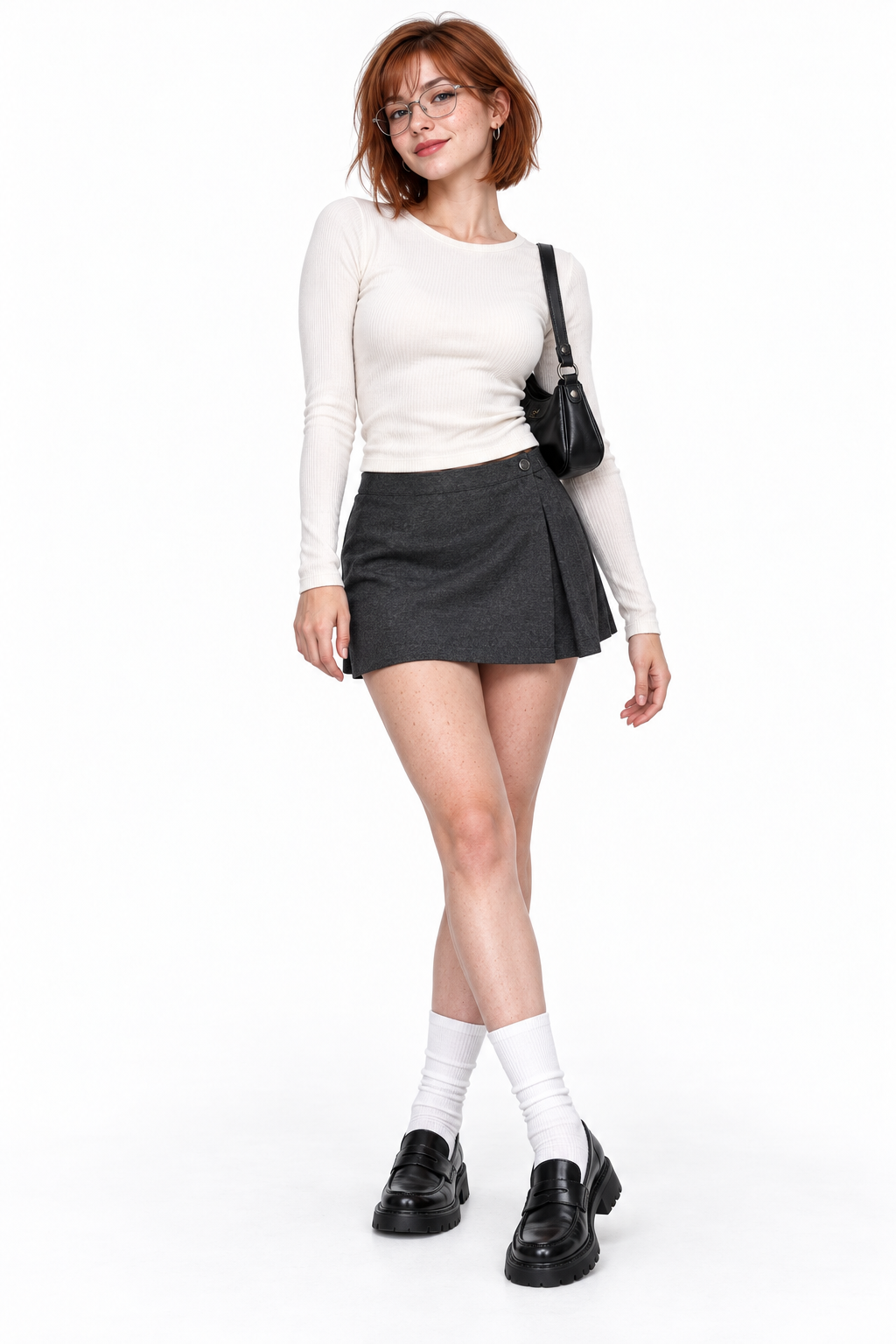
Start with the dance generator when you already have a routine in mind. Play the templates and compare movement, pace, number of people and clip length. Solo dances and duets have their own photo requirements, all shown before you create.
Your selection brings up the matching photo slots and credit quote. For a duet, add each person to the named role. A full-body photo should keep hands and feet in view. For Baby Dance, open its dedicated page, upload the requested child photo and confirm parent or guardian permission.
03 / Put your product in motion
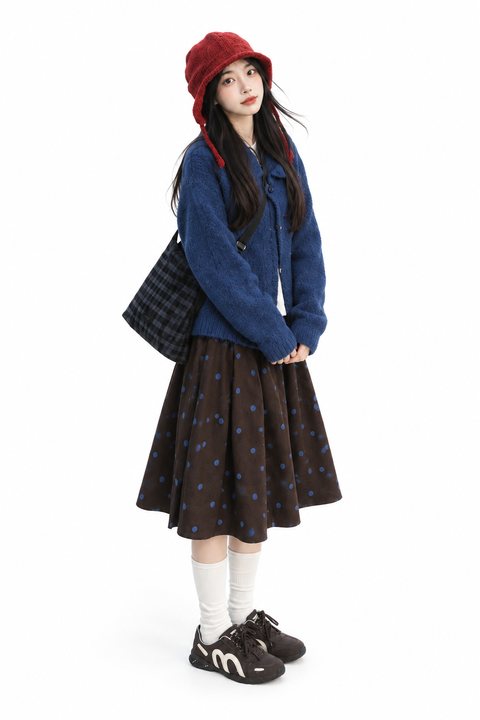
Make a short clip from a clear product photo for a launch teaser, a social post or a longer ad edit. Keep the complete product in the image and choose a simple background with a clear silhouette.
Choose portrait for a mobile placement or landscape for a wider presentation. Review the complete film for product shape and packaging details, then add precise prices, offers and brand copy in your edit.
A QUICK WAY TO CHOOSE
Start with the shot you want, then choose a route. Each tool has its own inputs and settings.
Animate a portrait, a pet or a scene. Choose a model and optionally describe the movement.
One photo · optional motion promptPreview a dance, choose its template and add the photos. The template supplies the movement.
Photos for the selected danceStart with a clear product photo and choose a portrait or landscape film for your next post.
One product photoBrowse outfit changes, duets, playful pets and more scenes. Pick the look you like and open its dedicated template to create.
Watch the video, then choose the templateBEFORE YOU UPLOAD
Use a sharp original photo with the face or product visible. Avoid cropped products, covered faces and large text overlays. Important details should still be easy to recognize when the image is viewed at a smaller size.
A solo routine, a duet and a product film need different photos. Read the input guidance in the tool, then check the role order, body framing and intended format before you submit.
Review the selected model, length, quality and credit cost in the tool. When the video is ready, watch the whole clip before downloading it for your next post.
Tools are organized around a job: animate a photo, make a dance or create a product film. Trending templates are organized around a particular scene or routine. Go straight to Trending when you recognize the effect you want. Choose Photo to Video when you want to describe your own motion.
A motion prompt is optional in Photo to Video. You can describe a subject action, a camera move and the setting you want to keep. Dance templates already provide the movement, so you choose the routine and add the requested photos. Product films start with a product image and a format.
Use a clear JPG, PNG or WebP image. Keep a face visible for portraits, hands and feet in frame for full-body dance photos, and the complete outline for products. For a two-person template, add the photos to the separately labeled roles and check their order before creating.
Generating a video uses credits. Photo-to-video quotes depend on the model; dance prices depend on the template and its available quality settings. Open the tool to see the current quote before submitting. The pricing page explains the available credit packages.
Approved clips can be played and downloaded from your private creations in your account. Watch the complete clip before sharing it or adding it to an edit. If a generation is still unresolved, check that task first. Credits are returned for confirmed generation failures.
A product film can be part of your ad creative. Check product shape, labels and small details before publishing, then add precise prices, offers and brand copy in your edit. Small lettering in generated footage can change, so keep important information in a separate text layer.
YOUR NEXT SCENE STARTS HERE
Watch the videos in the template directory, find a routine or effect, and bring your own photos to the scene.