
How to Make a Video Ad With Stock Footage
 ReelBoop
Make a 12-second video ad with licensed stock footage, a three-part edit plan, a tested FFmpeg kit and practical checks for the finished video.
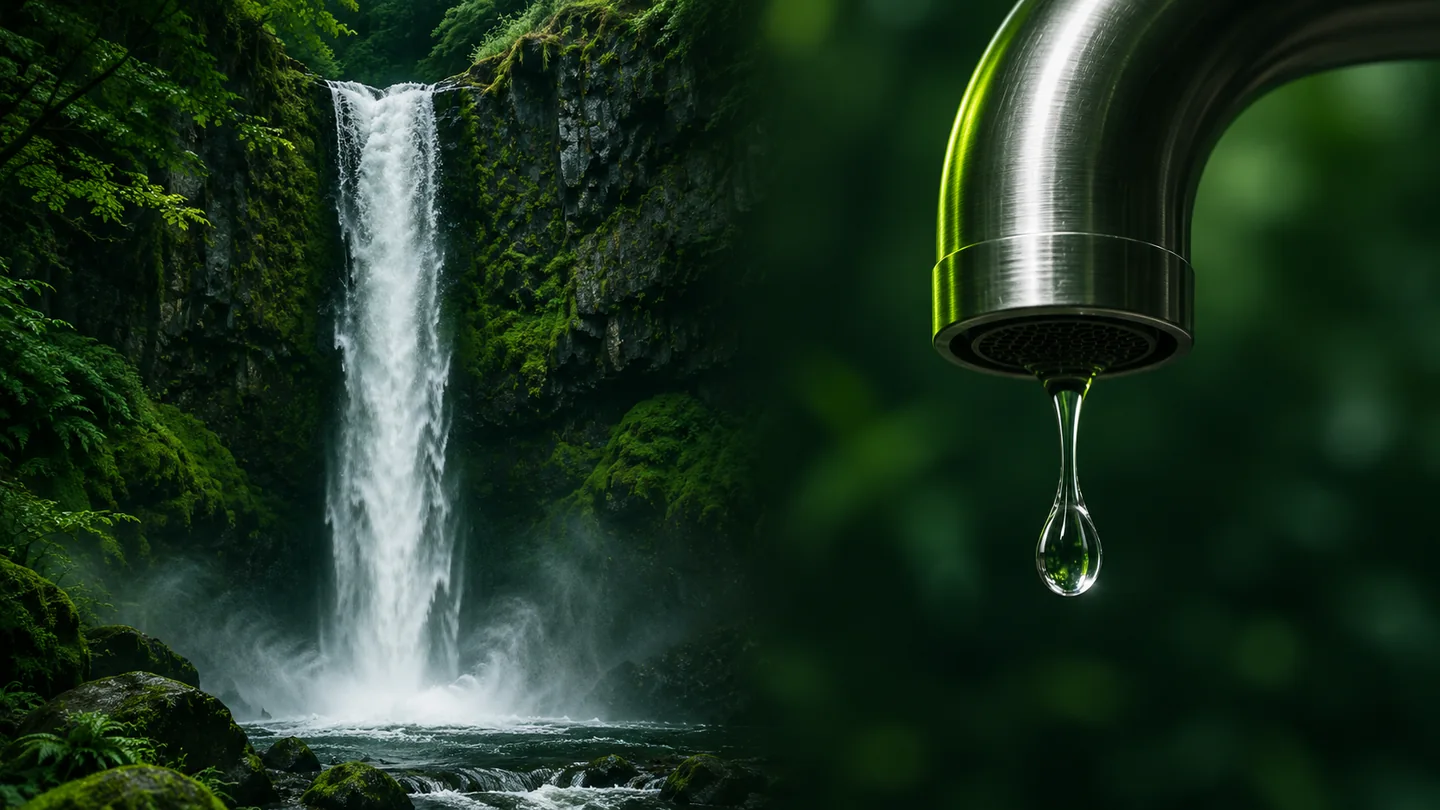
Make a 12-second ad from two stock clips and a closing card. Use the first three seconds to catch the eye, the next five to show the problem, and the last four to ask for one action.
- Get the footage. Download Pavel Danilyuk’s vertical waterfall at 720 × 1280 and Charlotte May’s dripping faucet at 3840 × 2160.
- Choose an editing route. Use the tested FFmpeg edit kit to reproduce the sample. You’ll need Bash and FFmpeg with the libx264 encoder. To adapt the structure by hand, sign in to Clipchamp’s video editor or use another editor with a 9:16 timeline. The Clipchamp pointers below follow Microsoft’s documentation.
This is an example for a fictional plumbing service. The stock clips illustrate a problem and a visual joke. For a real ad, use footage of your own work wherever you want to show a job, a result or a customer experience.
Watch the edit before rebuilding it
The first shot is deliberately out of scale. The second makes the connection clear. The last four seconds give the viewer time to read the service and action. TikTok describes the same broad order as hook, body and close, and recommends leaving room for the app controls on vertical video.
1. Write one promise and three lines
Choose the product or service, the person who needs it and the action you can actually fulfill. For this example, the service is faucet repair, the audience has a recurring drip, and the action is booking. The headline uses a visual metaphor. The offer stays literal.
| Time and shot | On-screen copy |
|---|---|
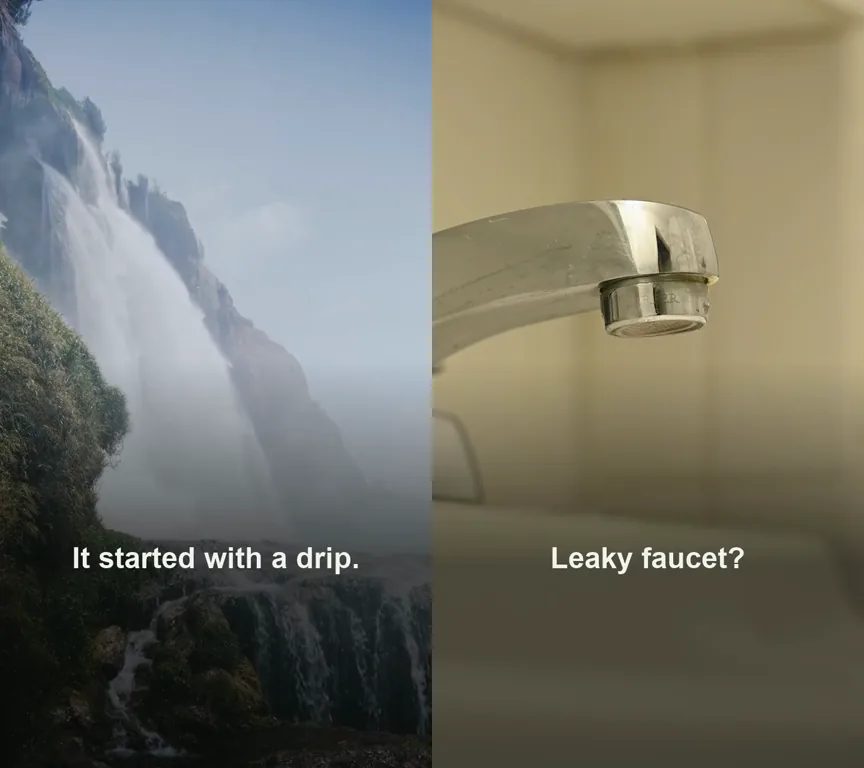
| 0–3 s · Waterfall | “It started with a drip.” |
| 3–8 s · Faucet close-up | “Leaky faucet?” |
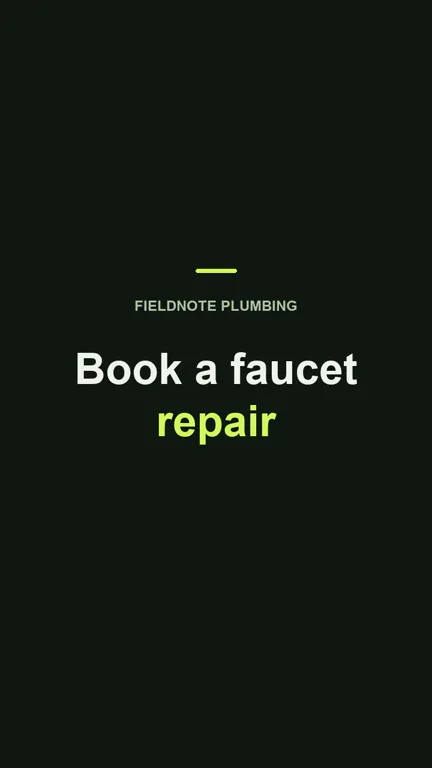
| 8–12 s · Business name and end card | “Book a faucet repair” |
To compare two visual hooks, swap the waterfall for a wider faucet shot and retain “It started with a drip.” Keep the runtime and the last two beats identical. For a product ad, the middle beat is where an accurate product demonstration or a screen recording earns its place.
2. Find a contrast shot and a problem close-up
Choose a higher-resolution download when you need to crop a landscape clip to portrait. That gives small details like the drip more pixels to work with. If you use Clipchamp’s stock library, choose assets included with your account’s plan.
The search terms can describe motion more precisely than the product name. Try “vertical waterfall side view” for the hook and “faucet drip close-up” for the problem. Scrub the thumbnails until the action reads in one glance. With landscape footage, preview the portrait crop before committing to the shot. You need the subject and its motion inside the crop, with a quiet area for text.
Check the license on the actual asset page and save its URL, creator and license with your project. The Pexels license allows edits and commercial use with restrictions, including implied endorsement and standalone redistribution. Check background logos, recognizable people and the rights on any audio separately. Choose a clean alternate take if the crop still shows somebody else's brand.
3. Trim the clips and build the ad
- Trim the hook. Set the project to portrait 9:16. Trim the waterfall from 0.5 to 3.5 seconds of the source clip, then place those three seconds at the start of the timeline.
- Cut to the faucet. Place source seconds 1–6 at timeline 00:03 and mute both clips. Fill the portrait frame and position the spout near the upper middle, with room below for the drop. Use the two frames above as a visual reference. For Clipchamp, see Microsoft’s portrait and fill controls.
- Place the copy and booking card. Put the first two lines near the lower third, centered and above the area used by captions and buttons. At 00:08, add a four-second dark green card (#121912). Center “FIELDNOTE PLUMBING” above “Book a faucet repair.” Check the layout in your actual placement preview since app overlays depend on where the ad appears.
- Export and replay the MP4. With the project set to 9:16, export an MP4 and replay the downloaded file. Microsoft lists 1080p among Clipchamp’s MP4 export options. The example here is 720 × 1280. If you add a voiceover, time the captions to the words and keep any music beneath the speech.
Recreate the exact sample with FFmpeg
Download the edit kit and extract it. Use a terminal with Bash on macOS or Linux, or a Bash environment such as WSL on Windows. Make sure FFmpeg with libx264 is installed in that same environment.
- Save the 720 × 1280 waterfall MP4 as
waterfall.mp4and the 3840 × 2160 faucet MP4 asfaucet.mp4. Put both beside the script and the three included graphics. - Open the extracted folder in your terminal and run
bash render.sh. - Play
stock-footage-ad.mp4. The result should be a silent 12-second 720 × 1280 video with cuts at 3 and 8 seconds.
The script trims both clips before running the FFmpeg filter chain. The filters normalize the frame rate, crop the 4K faucet image to a 1216 × 2160 window starting 1760 pixels from the left, overlay the text, and join the three beats. The script uses the same crop, graphics and timings as the player above.
4. Check the replay on a phone
Play the exported MP4 on a phone with the sound off. By second three, the opening line should be readable. By second eight, a viewer should be able to name the problem. At the end, they should be able to say what they can book. For a live campaign, preview the ad in its intended placement. Check that captions and controls leave the copy readable and that the ad button opens the page promised by your call to action.
| What you see | What to change |
|---|---|
| It feels like a travel ad | Reveal the faucet earlier or put “faucet” in the opening line. |
| The drip disappears in portrait | Reposition the crop around the spout and leave room beneath it. If the detail is soft after cropping, choose a closer source clip. |
| The offer is hard to read | Reduce the end card to one action, move it clear of the app controls, and give it a longer hold. |
| The shot looks like a claim about your business | Replace it with your own footage of the product, job or result you are describing. |
| The video has black bars | Check that the project is 9:16, then fill and reposition each source clip before exporting again. |
| You hear unwanted source audio | Mute both clips on the timeline, or remove their detached audio tracks, then export again. |
Use stock for an atmosphere, an analogy or a generic problem. Use actual product or customer footage to support a specific claim. If a product photo is the only asset you own, Photo to Video can make a short moving insert from that photo. Review the logo, shape and package text, then trim the insert in your video editor to replace the five-second middle shot. The product ad motion prompts give you five ways to brief the shot.
For a second version, change only the opening image or line so the comparison has a clear variable. Follow the same process with the same offer, format and end card.