
A PHOTO WITH DIRECTION
The scene is set. Choose what moves.
Use one starting photo to establish the subject and setting, then describe a camera move or small action. On ReelBoop, Kling 3.0 Pro creates one five-second silent clip.
Keep the visual brief in the image
Your starting photo supplies the subject, light and composition. Prepare those choices first so the motion prompt can spend its words on what happens next.
Direct the camera
A slow push-in brings attention to a product. A gentle lateral move can reveal depth in a scene. Pick one movement and a modest pace that fits five seconds.
Add a small subject action
A turn of the head, a moving reflection or a breeze through fabric can give a still image a clear moment. Keep important edges and features in view as the shot develops.
STARTING IMAGE → VIDEO
Watch the camera move closer.
Watch the blue camera grow larger during the slow push-in. Compare the lens, small controls and edges from the start to the end.
FIVE-SECOND PRODUCT SHOT
One still subject. One gradual push.
The starting image has a complete blue camera, a cream surface and space around the subject. Play the video to see how the framing changes from the beginning to the end.
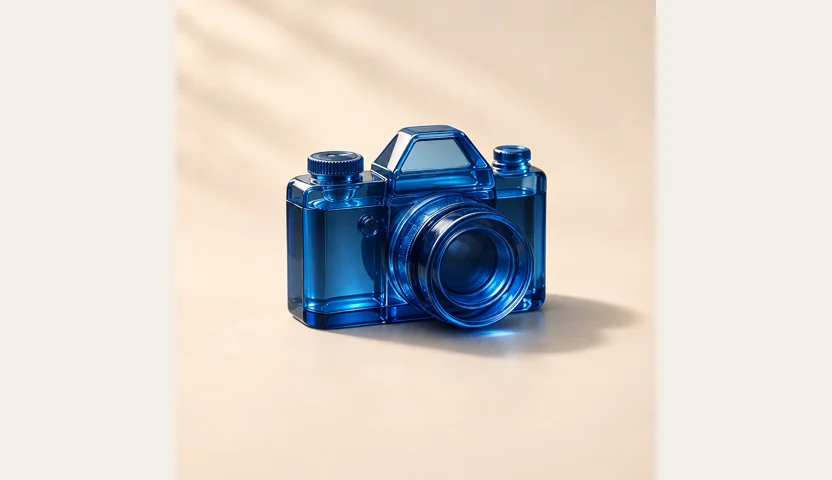
5-second silent video · press play
Motion · exact prompt
A very slow camera push toward the blue camera. Keep its shape stable. Soft studio light, no cuts.
Watch these details
- The camera grows larger as the view moves closer, and the example remains one continuous shot.
- The blue body, round lens and cream studio setting stay recognizable. The finished clip is silent.
- Inspect the lens rings, small controls and outer edges through the move. Their appearance shifts as the framing changes; a quiet motion brief still benefits from checking the final frame.
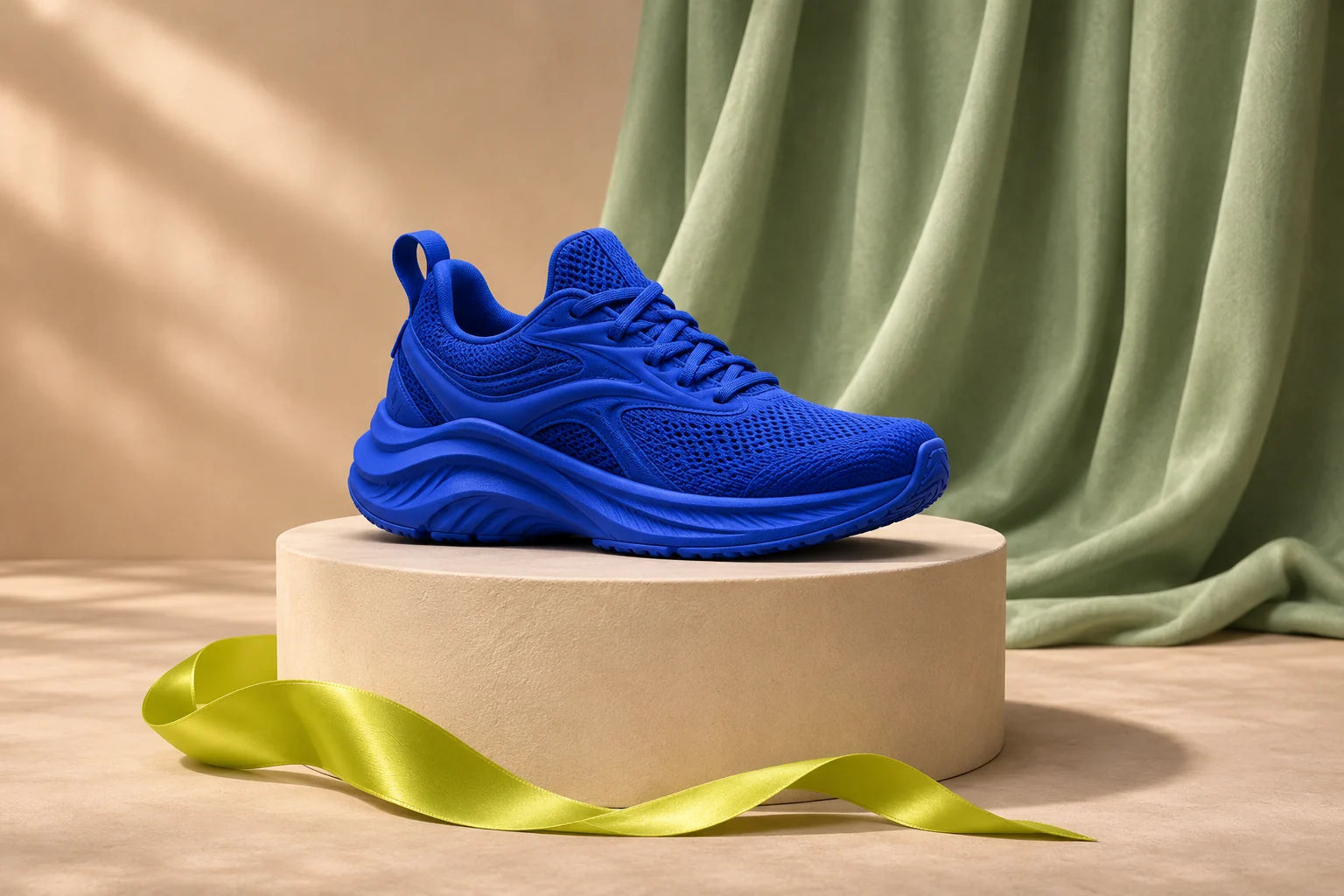
Concept illustration · leave room for the subject and the camera move
PLAN ONE SMALL MOMENT
Five seconds with a clear purpose.
A short shot works best when the viewer can tell what deserves attention. Let the starting image carry the design, then give it one motion idea.
A product reveal
Place the product fully inside the frame, with space around the top and sides. Ask for a slow push-in while the object stays still. Review logos, edges and fine materials before using the clip.
A quiet portrait moment
Start with a clear face and a relaxed pose. Ask for one small action, such as a gentle head turn, with a still camera. Keep the requested movement within the space visible in the photo.
A scene with atmosphere
Use a spacious landscape or interior and choose one environmental movement: a curtain stirring or leaves moving lightly. A restrained camera makes that motion easier to read.
START WITH THE MATERIAL YOU HAVE
Choose the workflow before the movement.
A still photo, a visual idea and an existing video call for different tools. Choose the starting point that matches your task.
I HAVE A PHOTO
Create a new moving shot
Use Kling 3.0 Pro here for a five-second silent clip. Choose landscape or portrait and describe one camera move or subject action.
I NEED THE FIRST IMAGE
Design a starting frame
Build the subject and setting with an image model, download the result, then return here to animate it.
I HAVE A VIDEO TO EDIT
Work from existing footage
A source-video edit begins with motion you already have. The Aleph 2.0 guide explains that separate Runway workflow and how to plan the change.
DIRECT YOUR SHOT
Prepare the image. Keep the motion focused.
- 01
Set a complete first frame
Add one clear starting photo and choose 16:9 or 9:16. Check the prepared frame: the important parts of the subject need enough room to move.
- 02
Give five seconds one job
Describe a small action and camera behavior. Keep Kling 3.0 Pro selected and review the five-second silent-video quote of 60 credits before generating.
- 03
Play the whole result
My creations shows progress, playback and download. Watch the start, middle and end for shape, framing and continuity before you use the completed clip.
FAQ
Kling 3.0 questions
Which Kling model is used?
Kling 3.0 Pro image-to-video. The selected model and credit quote remain visible in the creator before you submit.
What do I upload?
One starting photo. The creator prepares it in your selected landscape or portrait frame. Check that the complete subject remains visible.
How long is the video?
Five seconds. Kling 3.0 Pro creates a silent video from one starting image.
Does the video include sound?
Clips created with these Kling settings are silent. You can add a soundtrack later in your video editor.
How much does it cost?
Each Kling 3.0 Pro generation uses 60 ReelBoop credits. Check the quote before submitting.
What should I write in the motion prompt?
Describe the subject movement and camera behavior. A small action or slow camera move gives five seconds a clear focus.
Where can I play and download the result?
My creations shows your task while it is generating and offers playback and download once it is complete.
Can I choose another video model?
Yes. Select another available model in the creator to see its settings and credit quote before generating.
Model referencesKling 3.0 Pro image-to-video documentation