
MEET NANO BANANA 2.1
One idea. A visual world to build around it.
Google’s Nano Banana 2.1 is based on Gemini 3.6 Flash and works with text and image inputs. On ReelBoop, that becomes two straightforward starting points: describe a fresh image or upload one reference to guide an edit.
Create the first anchor
Name a subject with a few recognizable traits: its shape, material and main color. A concise brief helps you decide what makes the character or object worth carrying into another scene.
Use the image as context
A reference lets the next request start from visible details. State which traits matter and ask for one change, such as a sage backdrop or a closer crop. Compare the edit with the anchor before continuing.
Shape a useful series
Keep the subject description stable while trying different settings. Square images suit a small character study; portrait or landscape gives you room for a scene. Each request produces one 1K PNG.
TEXT → IMAGE → EDIT
A small robot, a controlled next step.
A cream clay robot with a cobalt backpack was first created from text. That completed image then became the reference for a second request: change the background to soft sage green.
CHARACTER & BACKGROUND
Keep the recognizable traits. Change the setting.
The first prompt specifies the full body, two dark eyes and a blue backpack. The edit repeats the key traits and names one new background color.
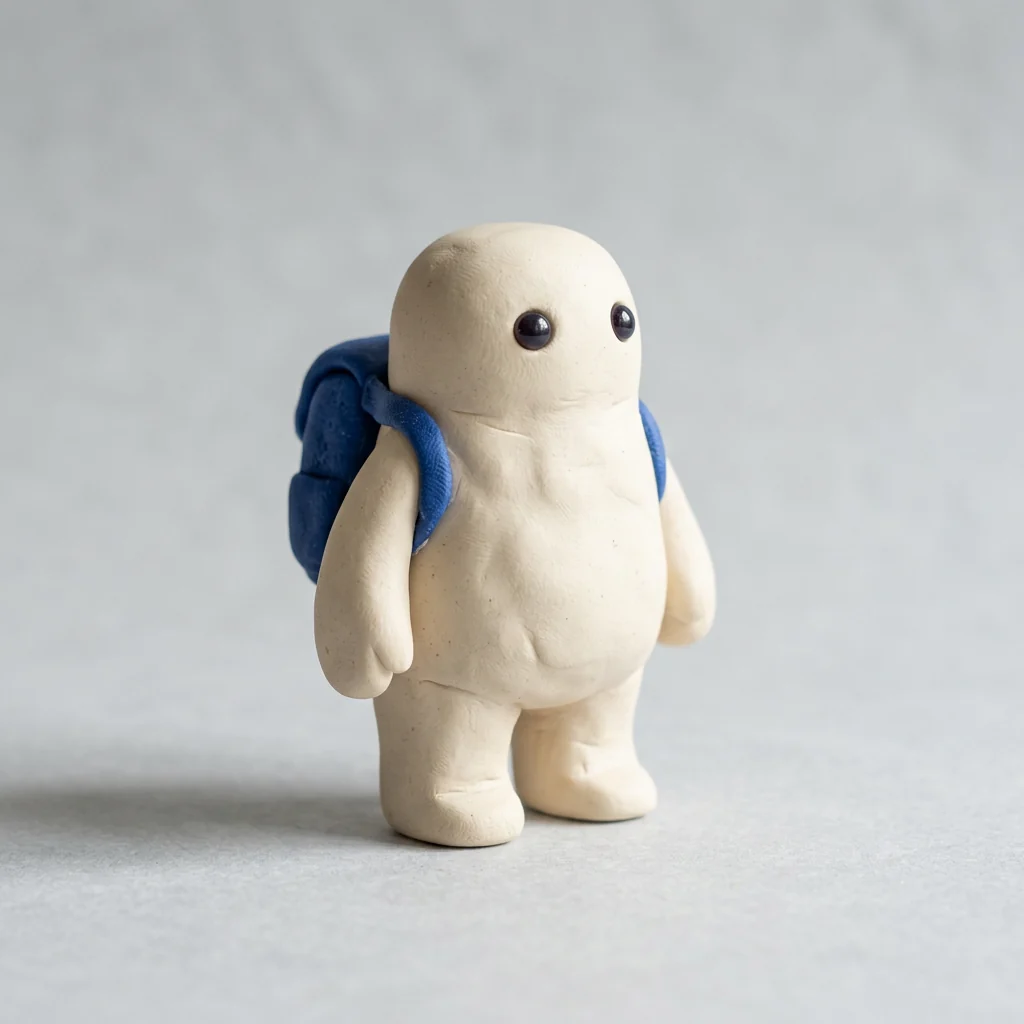
This image was the reference for the edit.
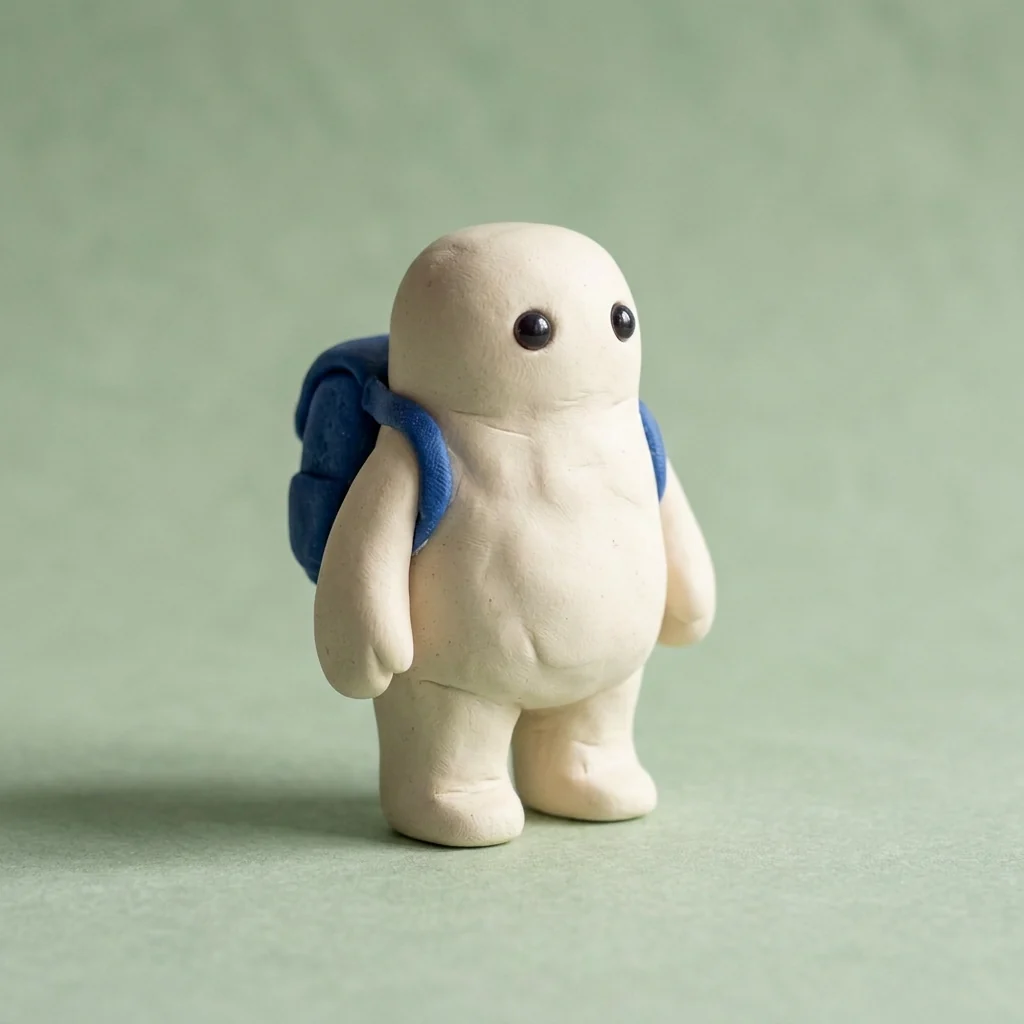
One reference · 1K PNG
First image · exact prompt
A small cream clay robot with two round dark eyes and a cobalt blue backpack, standing on a pale gray studio surface. Soft daylight, full body, no text.
Reference edit · exact prompt
Keep the cream robot and blue backpack. Change only the background to soft sage green. Full body, soft light, no text.
What the edit carried forward
- The cream body, two dark eyes, blue backpack and full-body composition remain recognizable in the edited image.
- The requested sage color appears in the backdrop and across the surface beneath the robot. Background edits can affect the surrounding set as well.
- Small clay creases and the body outline change between the two images. For a series, compare those details and the backpack straps before accepting a new scene as your next reference.
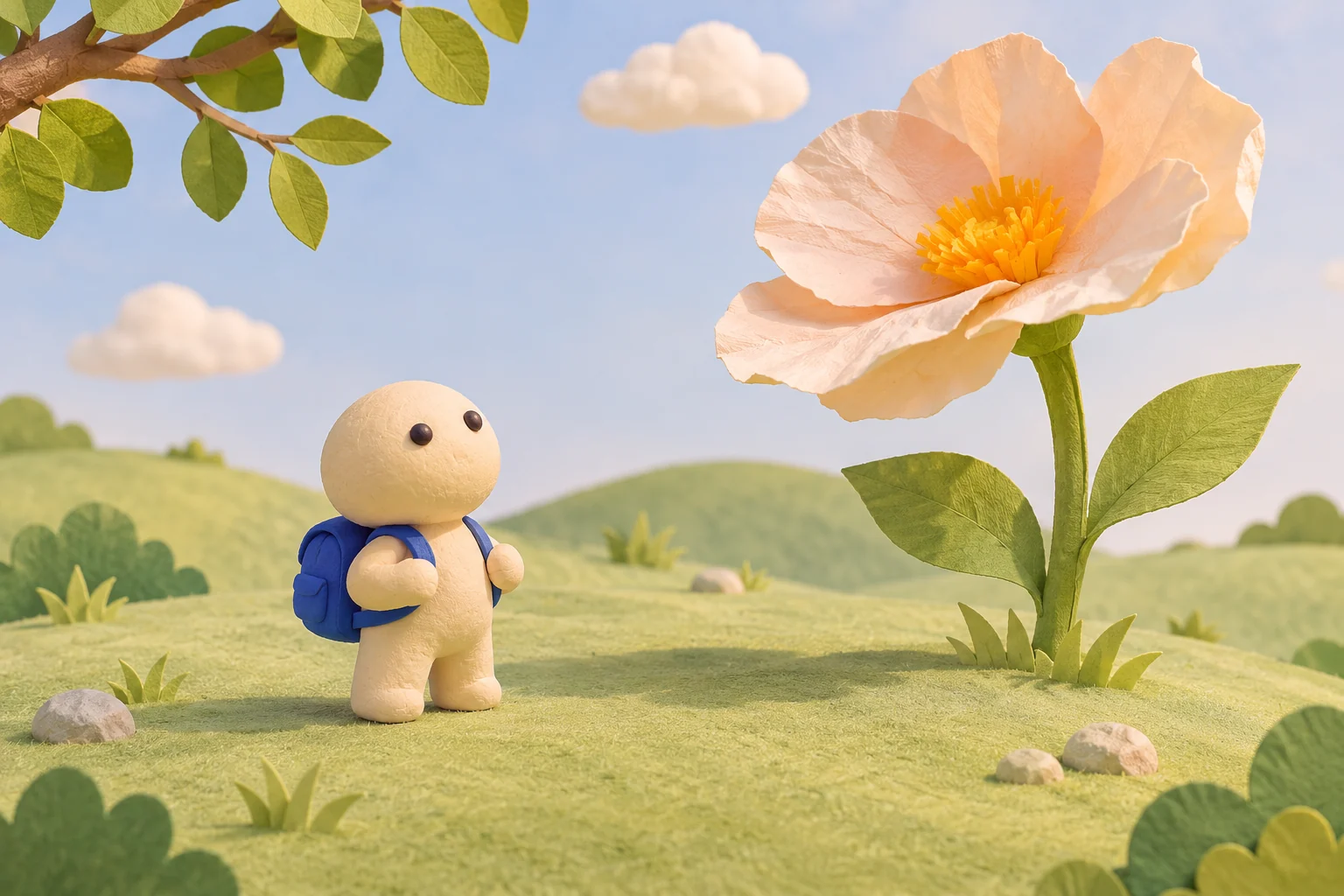
Concept illustration · plan a new setting around a recognizable subject
SCENES WORTH EXPLORING
Give your anchor somewhere to go.
A repeated subject is a starting point for a story, campaign or set of visual ideas. Choose a small change that serves the next image.
Mascot story scenes
Keep the face, silhouette and accessory description the same while asking for a garden, desk or shop window. Give the character one clear activity and keep its important features visible.
A product palette study
Use one product reference and explore a background or surface color at a time. Check the product outline, label and material against the input before choosing a direction for a campaign.
A starting image for a short clip
Create a spacious composition with the whole subject in view. After downloading it, choose a video model and describe a small movement. The image and video are separate requests with separate quotes.
CHOOSE THE STARTING POINT
Text for an idea. A reference for a revision.
The image you provide and the change you request should carry most of the brief. A short instruction is easier to judge than a list of unrelated changes.
FROM TEXT
You are still finding the subject
Describe the subject, material, setting and light. Generate a first image, then decide which traits should carry into later scenes.
WITH A REFERENCE
You have an image worth building on
Add one image and repeat what matters most. Ask for a single adjustment, inspect the result, then choose the next change.
ANOTHER IMAGE MODEL
Compare a different editing approach
GPT Image 2.6 offers Flare and Sunburst with their own documented priorities. The same clear brief gives you a useful way to explore either workflow.
MAKE YOUR FIRST VARIATION
Build, compare, then continue.
- 01
Describe or upload
Write up to 600 characters. For a reference edit, add one JPG, PNG or WebP up to 5 MB and name the important traits to retain.
- 02
Choose the composition
Select 1:1, 16:9 or 9:16. Keep the whole subject visible when you plan to reuse it, then confirm the 5-credit quote and generate.
- 03
Review your PNG
Open My creations to follow progress and download the 1K image. For another edit, upload the saved image as a fresh reference and ask for the next focused change.
FAQ
Nano Banana 2.1 questions
What is Nano Banana 2.1?
Google’s image generation and editing model, based on Gemini 3.6 Flash. Here, you can create from text or edit one reference image.
Can I edit a photo?
Yes. Add one JPG, PNG or WebP up to 5 MB, then describe the change and the details you want to keep.
What will I receive?
One PNG at the 1K setting. Choose square 1:1, landscape 16:9 or portrait 9:16 framing.
How much does it cost?
Each request uses 5 ReelBoop credits. The selected model and quote are shown before you submit.
How long can my prompt be?
Up to 600 characters. Start with the subject, requested change and a few important visual details.
How can I build a consistent character series?
Use a clear reference and repeat the traits that matter. Compare the face, silhouette, clothing and accessories in each result before using it as a new reference.
Where are my completed images?
My creations contains your task progress and completed PNG. View and download it through your signed-in account.
Can I animate the image?
Download the PNG and upload it to a photo-to-video tool. Choose a video model and review its separate settings and credit quote.
Model referencesGoogle DeepMind model cardNano Banana 2.1 API documentation