
WHAT CHANGED
More room to direct the picture.
GPT Image 2.6 combines image creation with instruction-based editing. OpenAI positions Flare for quicker iteration and Sunburst for finer detail and consistency across edits. Here, both use Medium quality and the same 5-credit quote.
Give the layout a purpose
OpenAI highlights improved layout quality in Flare. Describe where the subject sits and where you need empty space. That makes a useful starting brief for a product image, poster background or social crop.
Make a targeted change
Upload one image and name both the edit and the details to retain. A new surface, softer light or a simpler backdrop gives you a focused revision to inspect against the original.
Choose detail deliberately
Consider Sunburst when material texture, small objects or a carefully arranged scene matter. Review the result at full size before using it; choosing a model is only the start of the art direction.
REFERENCE → RESULTS
A blue camera, rebuilt for a studio.
These completed examples used the same three-panel reference and two different prompts. Each asks for a single blue camera on a cream surface. Open either prompt to see the exact instruction behind that image.
PRODUCT IMAGE EDIT
From a moody reference to one clean composition
The source brings a translucent camera, a lime ribbon and dark lighting. The task is to keep the blue camera while simplifying the scene for a square product photograph.
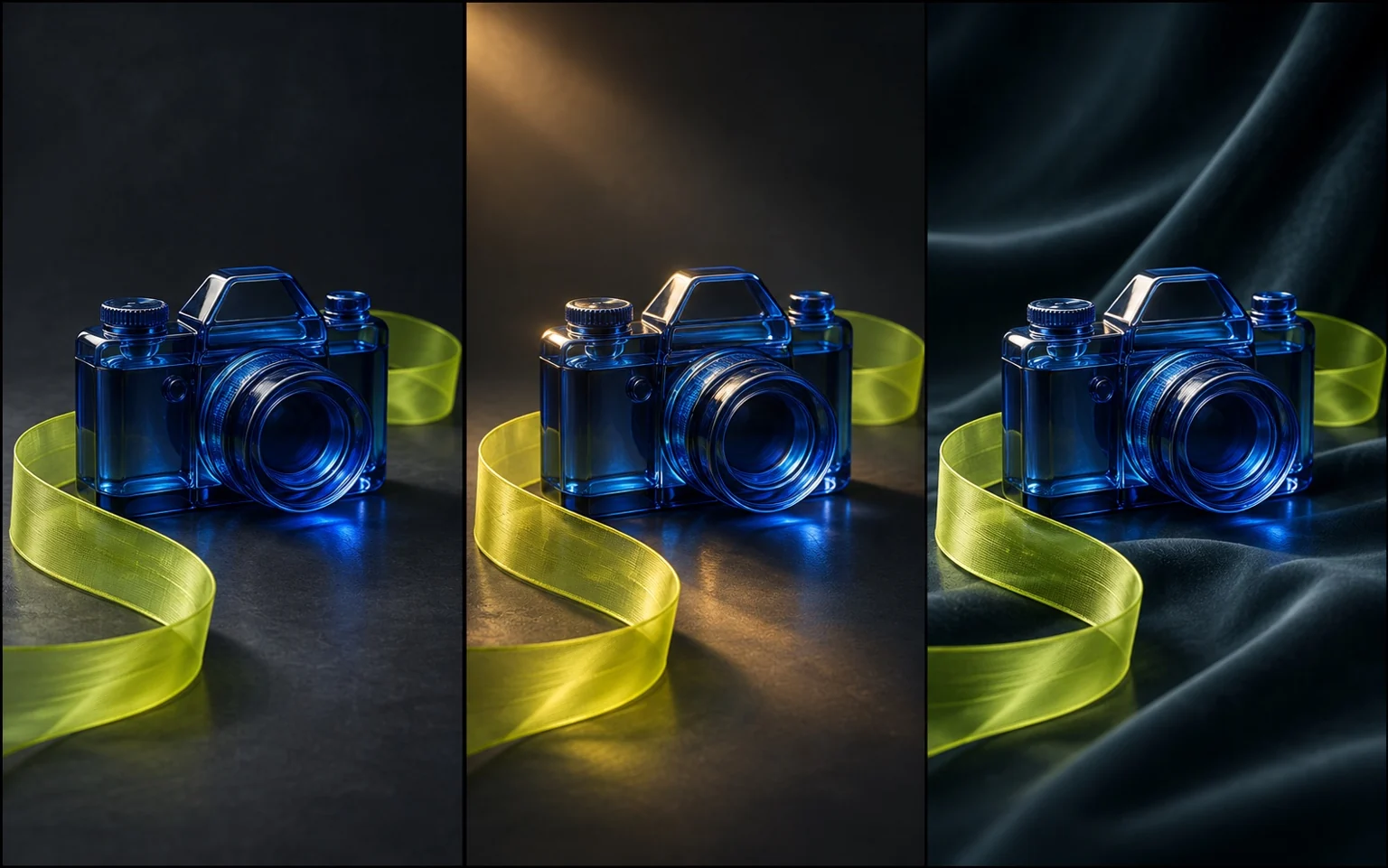
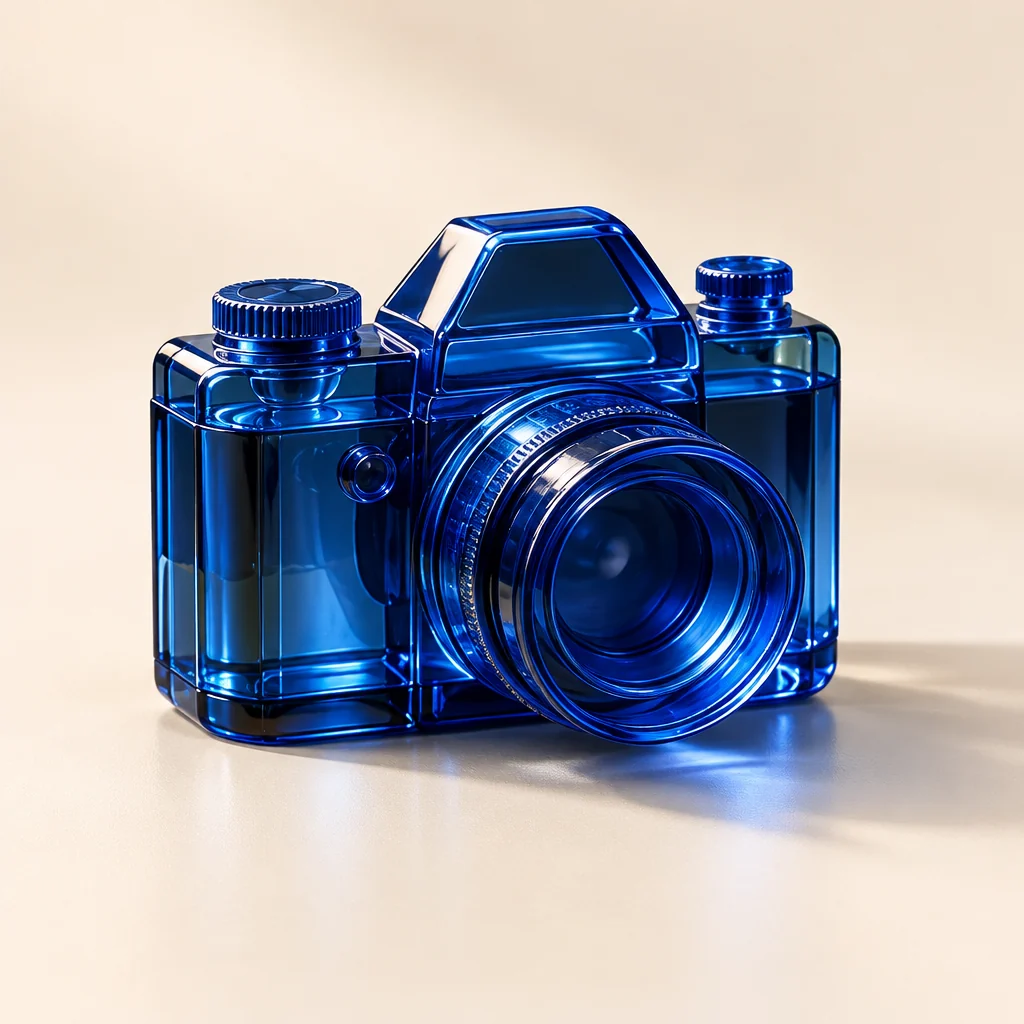
Medium · square PNG
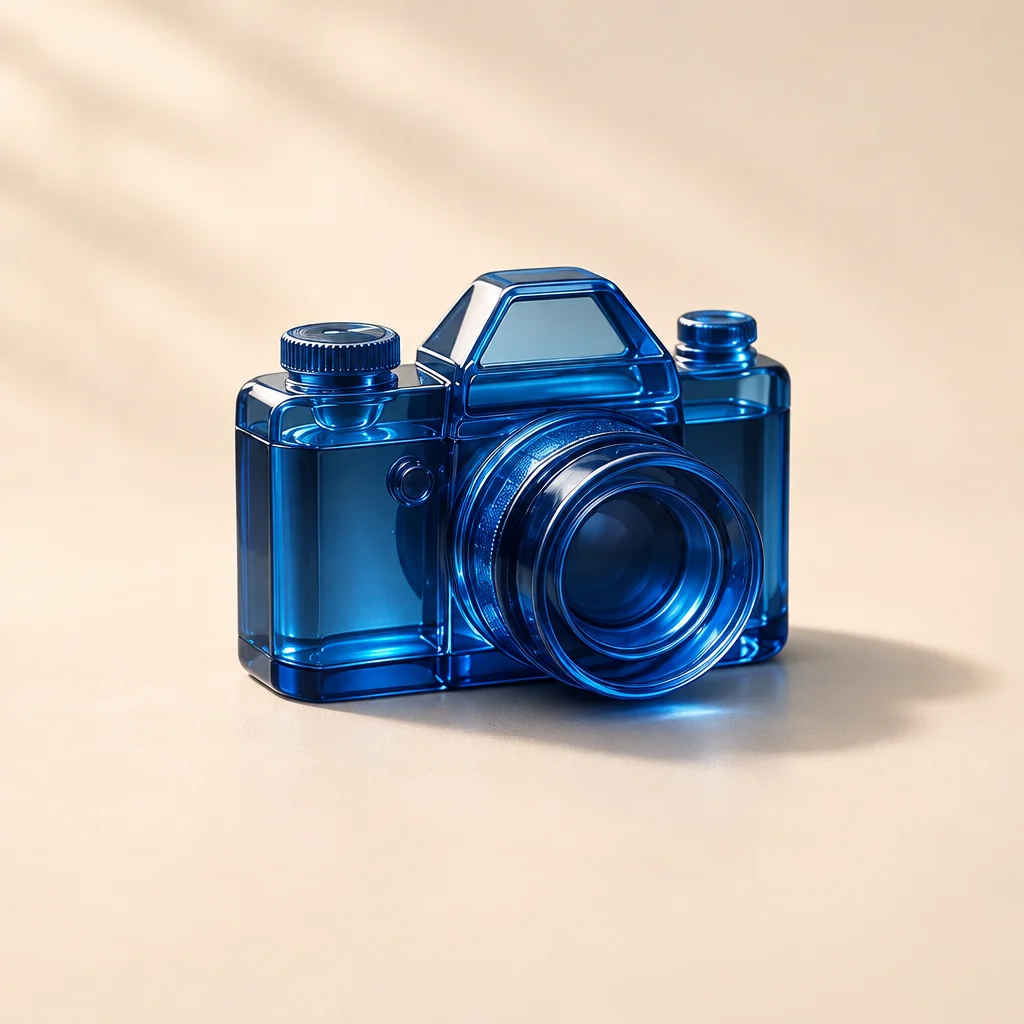
Medium · square PNG
Flare · exact prompt
Create a clean product photograph using the blue camera from the reference image. Place one blue camera on a pale cream studio surface. Soft daylight, subtle realistic shadow, no text. Square composition.
Sunburst · exact prompt
Use one blue camera from the reference image. Create a minimalist studio product photo on a warm cream surface with soft daylight and a subtle shadow. Keep the camera blue. No text.
What to look at
- Both results reduce the reference to one camera, remove the ribbon and replace the dark setup with cream surroundings.
- The Flare camera fills more of the frame. The Sunburst composition leaves more open space and casts a longer shadow to the right.
- Lens rings and body details differ between the images. Check the silhouette and controls against your own product reference when accuracy matters.
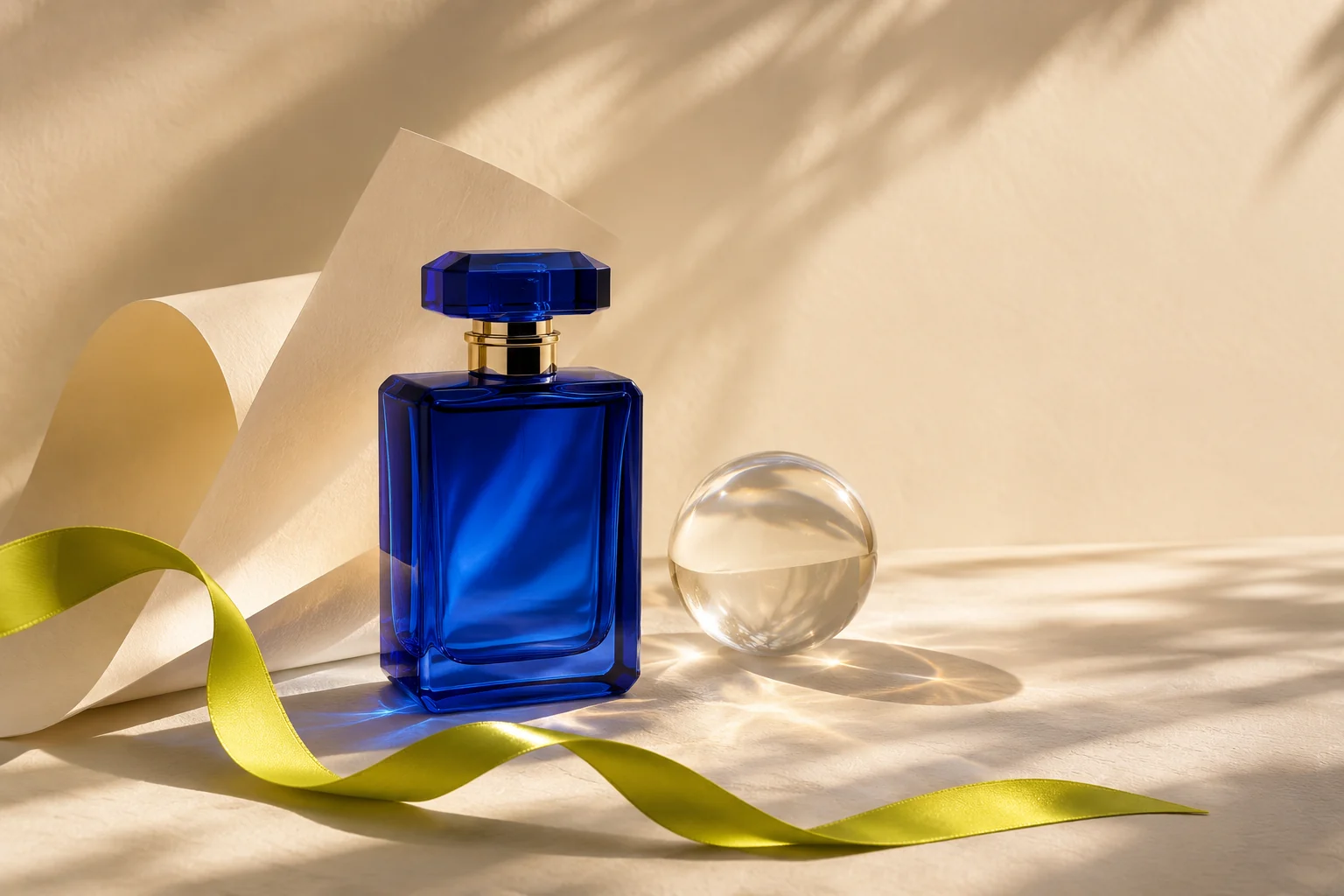
Concept illustration · subject, material, light and space for copy
PUT IT TO WORK
Brief the image for the place it will live.
A useful prompt says more than what the object is. Give it a purpose, a frame and a few visual priorities.
Product campaign direction
Start with a product reference and request one setting change, such as warm stone and side light. Keep a short list of must-retain details, then check them before building the next variation.
Social and poster backgrounds
Choose 9:16 for a vertical post or 16:9 for a landscape banner. Name a clear area for your headline and keep the main subject away from that area. Add final typography in your layout tool.
A starting frame for motion
Make the subject large enough to read, with room around its edges. Download the image and use it as the starting photo for a short video, with a separate motion prompt and credit quote.
CHOOSE YOUR PATH
Flare or Sunburst?
Start with the work you need to do. Both options on ReelBoop produce one Medium-quality PNG for 5 credits.
FLARE
Explore the direction
Use OpenAI’s iteration-oriented option while deciding on a composition, background or visual mood. Change one instruction at a time so you can judge its effect.
SUNBURST
Spend attention on the details
Consider the detail-oriented option for a busy composition or a careful reference edit. Compare small shapes, surfaces and requested changes with the input at full size.
ANOTHER APPROACH
Build a character-led visual series
Nano Banana 2.1 is another image-and-reference workflow for trying a small, repeatable scene brief.
MAKE THE NEXT IMAGE
A clear brief in three moves.
- 01
Set the frame
Choose Flare or Sunburst and 1:1, 16:9 or 9:16. For an edit, add one JPG, PNG or WebP up to 5 MB.
- 02
Name the change
Use up to 600 characters for subject, setting, light and composition. With a reference, say what to preserve and the single most important change.
- 03
Generate, inspect, continue
Check the 5-credit quote, then generate. My creations holds progress and your PNG download. For another edit, upload the downloaded result as a new reference.
FAQ
GPT Image 2.6 questions
What is GPT Image 2.6?
OpenAI’s image generation and editing model family. On ReelBoop, choose Flare or Sunburst to create from text or edit one reference image.
How are Flare and Sunburst different?
OpenAI positions Flare for fast iteration and Sunburst for greater detail and consistency across edits. ReelBoop offers both at Medium quality for 5 credits per image.
Can I edit my own photo?
Yes. Add one JPG, PNG or WebP up to 5 MB and describe what to change and retain. You can download a completed result and upload it for a further edit.
What file and size options do I get?
Each request returns one PNG at Medium quality. Choose square 1:1, landscape 16:9 or portrait 9:16 framing before generating.
Is GPT Image 2.6 free on ReelBoop?
Each generation costs 5 ReelBoop credits. The selected model and quote appear in the creator before you submit.
Can I export a GIF here?
This creator exports one PNG per request.
Where do I find my result?
My creations shows your submitted task and completed image. View and download it from your signed-in account.
Can I turn the result into video?
Yes. Download the PNG, upload it to photo-to-video and describe the movement. The chosen video model has its own settings and credit quote.
Model referencesOpenAI Images 2.6 announcementFlare documentationSunburst documentationOpenAI image API guide