





01
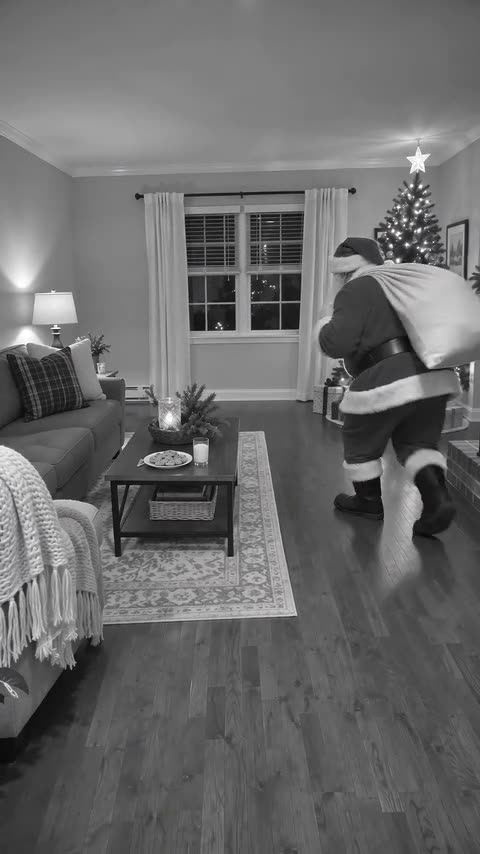
Santa enters the frame
The room starts still. Santa steps in from the edge with one wrapped gift.
Upload one photo of an empty room, hallway or porch. Santa steps into your scene and leaves a present in a 10-second security-camera-style clip.
JPG, PNG or WebP · up to 5 MB each
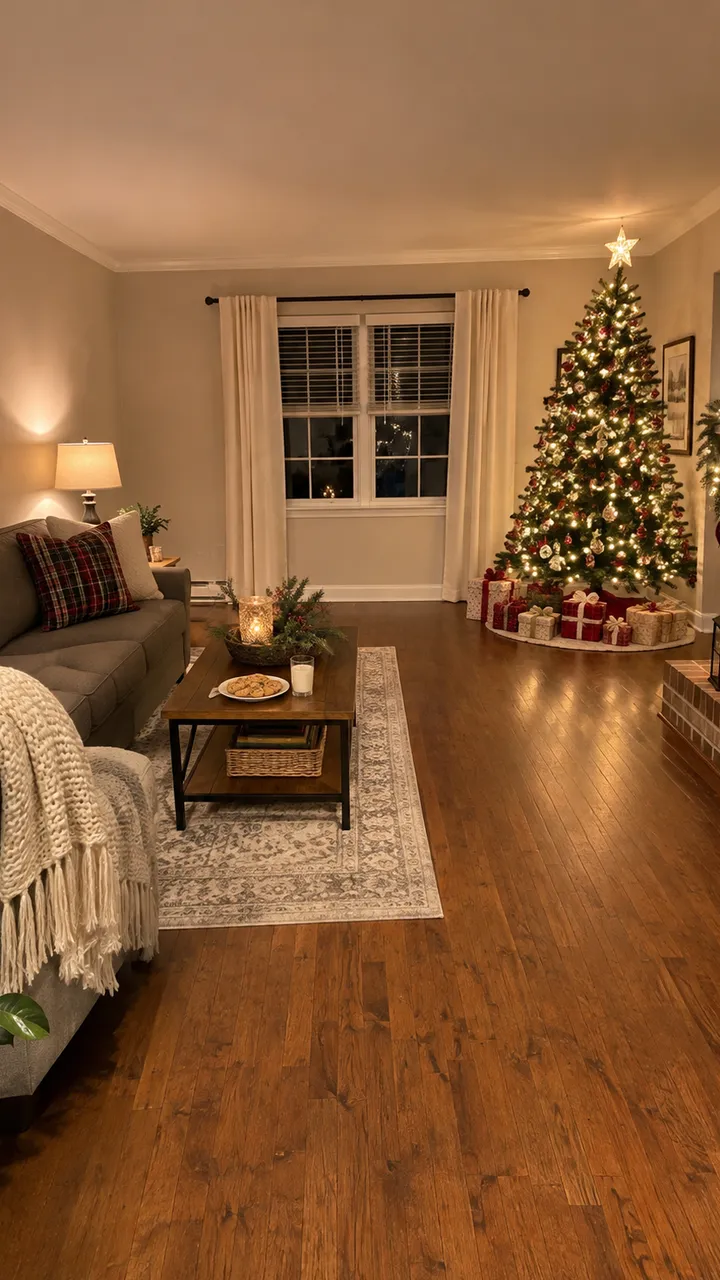
Frame the entrance and the spot where the gift will land.
Credits are returned for confirmed generation failures.
Checking credits…
Checking your task…Use a scene photo you have permission to use. Privacy
Join creators making videos
Your photo sets the location. The example uses a living room with a lit tree, but the gift drop can happen beside your own tree, at your front door or in a clear hallway.
START WITH YOUR PHOTO
Take a vertical photo from a high corner indoors or from doorbell height outside. Include both the edge where Santa can enter and a clear patch of floor for the gift.
Clear the path and step out of the frame. A room light can help show the doorway, steps and floor.
Leave the rug, sofa or porch railing in the shot so the location is recognizable even in dim lighting.
Hold the phone upright and step back. Keep the landing spot away from the edge so the box and Santa’s hands fit.
WATCH THE DETAILS
The room starts still. Santa steps in from the edge with one wrapped gift.
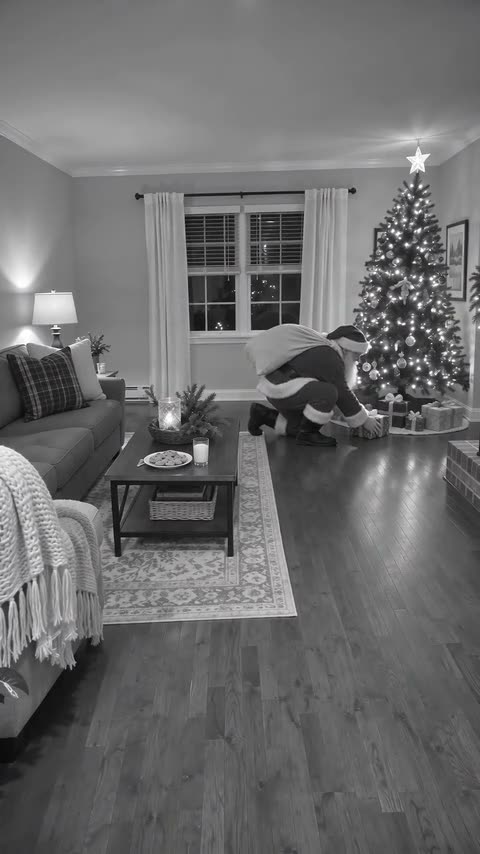
He crouches near the tree and sets the box down where the camera can see it.
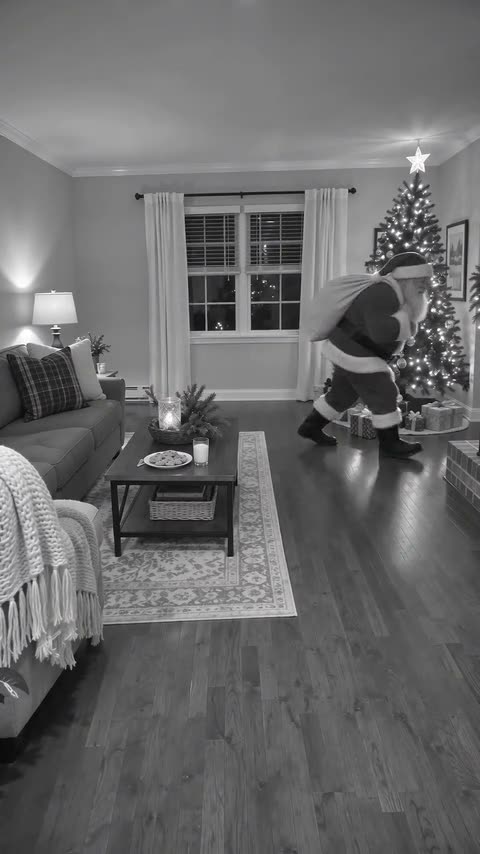
Santa glances toward the camera and turns back the way he came.
AT HOME
In a living room, show a walkable path between the entry and the tree. On a porch, use the flat landing next to the door as the gift spot.
For a narrow hallway, aim down its length and leave a well-lit patch near the threshold. Concrete details such as a mat or a banister help make the location recognizable.
AFTER DOWNLOAD
Add a fictional date and time in your video editor if you want a timestamp. Put it in a dark corner away from the gift and label the clip as AI-generated when you share it.
Choose one JPG, PNG or WebP up to 5 MB. A portrait-oriented photo of an empty indoor or outdoor space works best.
Yes. Use a clear frame of a space you have permission to use, with the landing and entrance visible. Crop away any private information before uploading.
Yes. Use a room, hallway or porch with a visible entrance and a clear spot on the floor for the gift.
Use a photo of the location while it is empty. The template uses your room as the scene and adds Santa as the character.
The 10-second vertical MP4 costs 120 credits at 480p or 240 credits at 720p. You can play and download the finished video from My creations.
Add your preferred date and time as an overlay in a video editor after download.
Credits are returned for confirmed generation failures.