
How to Edit and Submit a Clipping Campaign Video
 ReelBoop
Turn a clipping campaign brief into a short edit, pick a complete moment, check captions and credit, and submit the right post link or draft for review.
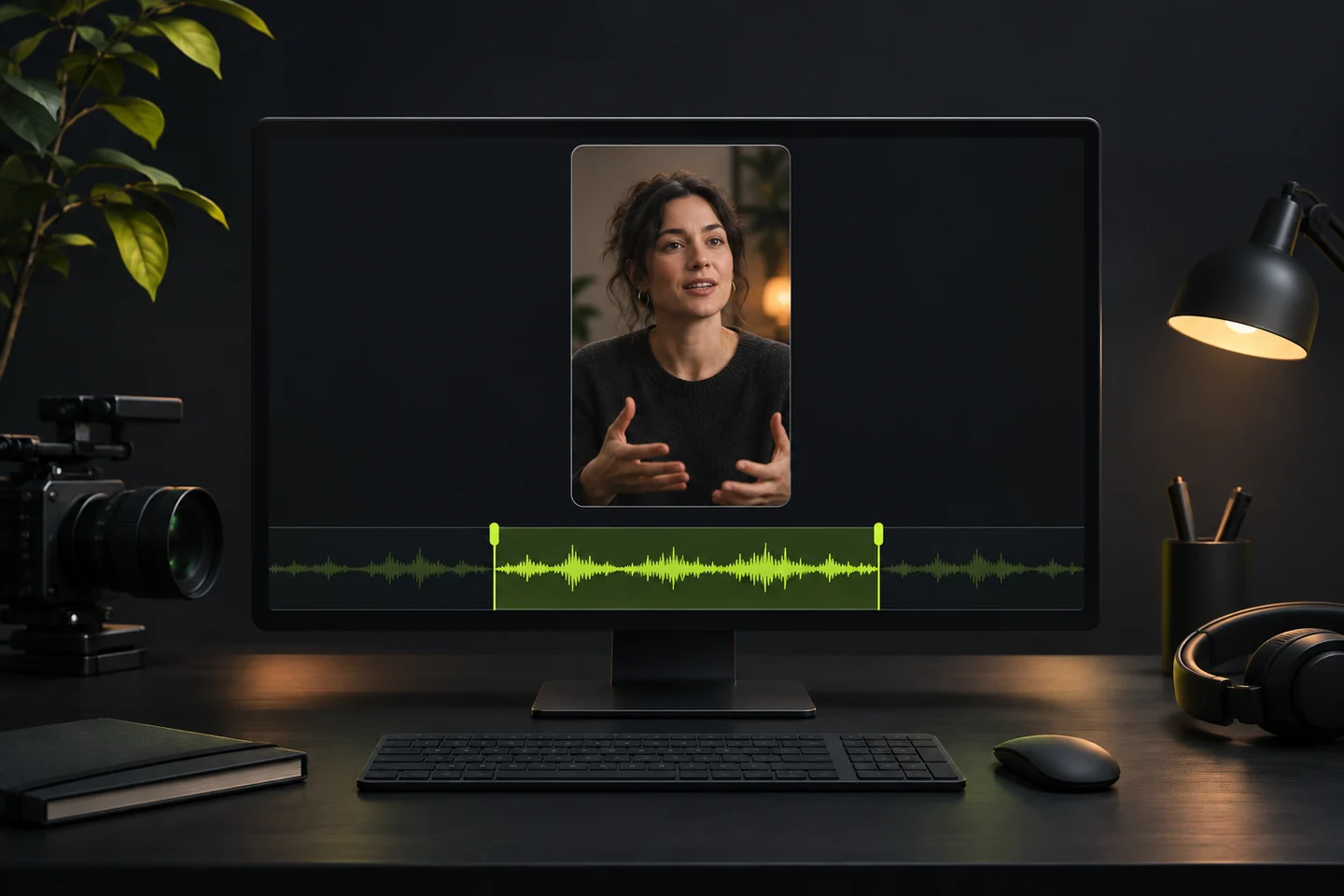
Open the campaign brief before opening your editor. It tells you what footage you can use, where the video should go, what the post must include, and whether a reviewer needs to see a draft first. Turn those requirements into a short checklist, edit one complete moment from the supplied footage, then check the MP4 and post against the same list.
Plan for both the edited clip and the submission. Check the publishing account, required caption tags and approval order before exporting. For an edit with no campaign brief, see how to cut a long video into Shorts.
Turn the campaign brief into editing decisions
Copy the actual requirements into your edit notes. Write down the source file and exact permitted range if there is one. Record the date you saved the brief and reread the live requirements before posting. Use a note like this for the fictional desk-lighting campaign in this guide.
| Field | Example to put in your edit notes |
|---|---|
| Source and allowed edits | Episode supplied by the organizer. Keep original speech. Cut pauses and add accurate subtitles. |
| Placement and duration | YouTube Shorts, 9:16, 20–35 seconds. Post from the connected account. |
| On-screen content and post text | Give the guest's name in the post. Use the campaign's supplied tag and credit format. |
| Submission sequence | Send the edit as a draft for review. After approval, post the approved version and submit its public URL. |
Collect any required logo file, credit spelling or disclosure instructions from the campaign. If the source has background music and you cannot tell whether it is permitted for this placement, use a different approved excerpt or ask the organizer for a clean version. For a campaign asking for a YouTube Short, YouTube accepts square or vertical uploads up to three minutes for standard channels under its current guidance. Use the campaign's narrower time and frame limits when they're specified. YouTube Shorts format guidance
Select a moment that can stand on its own
Look for one sentence the viewer can act on and a picture that makes it concrete. Play the lead-in and the next few seconds in the source to catch any condition, correction or punch line. In this fictional 28-second edit, an interview guest shows how to move a small desk lamp off to one side when it reflects in their glasses.
| Final cut | Clip from the approved source |
|---|---|
| 0–4 s | 08:12–08:16. Keep the guest's first full sentence about a lamp reflecting in glasses. The close shot shows the reflection. |
| 4–13 s | 08:16–08:25. Show the guest moving the lamp to one side as they explain where it goes. |
| 13–22 s | 08:27–08:36. Cut two seconds of setup. Keep the angle that lets viewers compare the new position and the lenses. |
| 22–28 s | 08:36–08:42. Keep the advice to open the camera and check the reflection again before recording. |
Mark the source and finished timecodes in your edit notes. If the shift in angle after the two-second cut looks like a jump, cover it with the desk-side shot from the same supplied recording. Play just that transition with sound. The sentence should finish naturally across the cut.
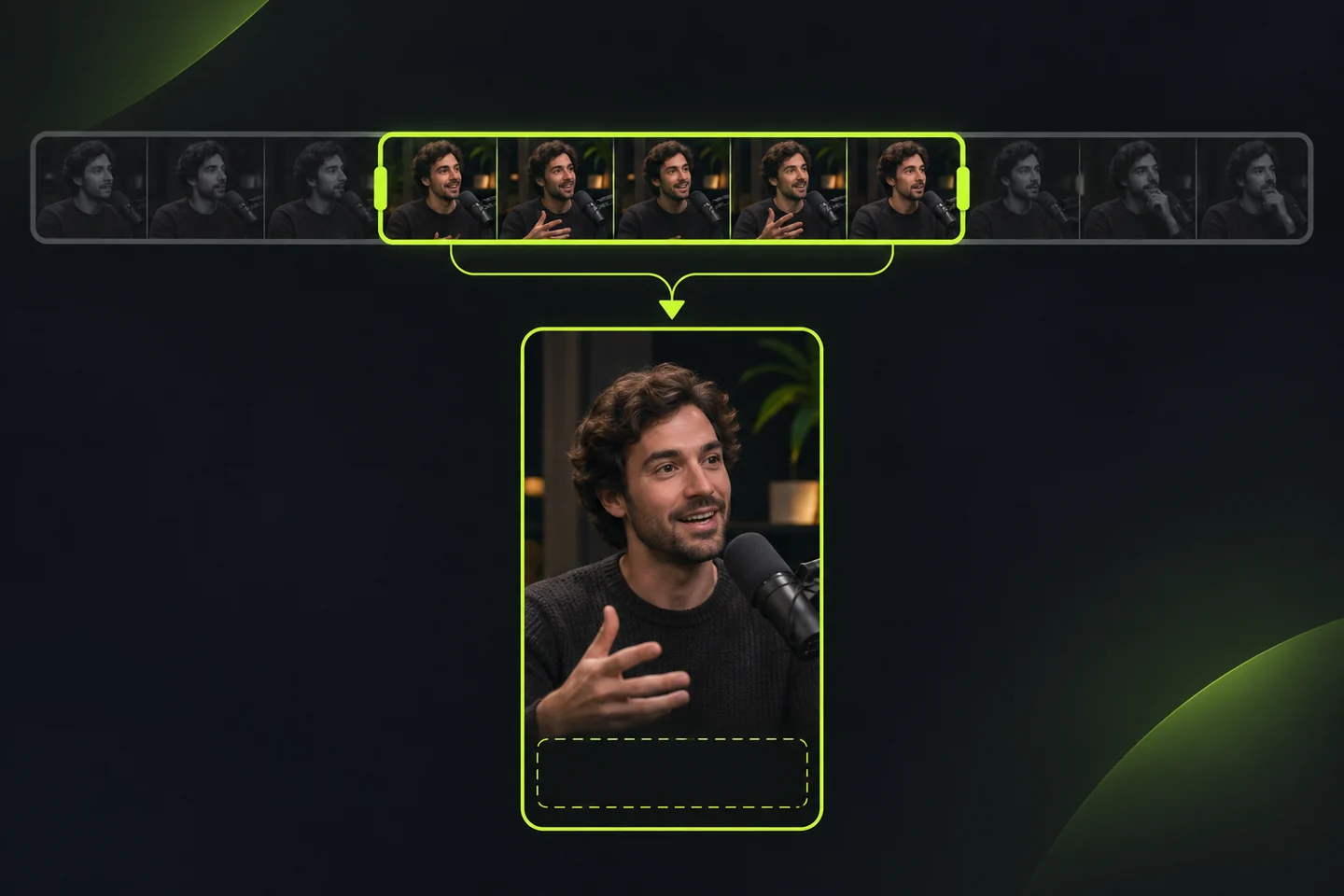
Mark the excerpt on the source timeline, frame the guest, and check the space for subtitles on a phone.
Cut the excerpt and verify every important caption
- Mark the cuts in your editor. In Clipchamp, place the organizer’s video at 00:00 on the timeline. Before moving or deleting anything, use the playhead and Split control at 08:12, 08:25, 08:27 and 08:42. Keep the clips from 08:12–08:25 and 08:27–08:42. Delete the other pieces, drag the first remaining clip to 00:00 and place the second directly after it. Play across the join at 00:13 and check that the edit ends at 00:28. Open the source beside the edit if a sentence sounds clipped. Microsoft's timeline and split instructions
- Frame each shot for the brief. Set the project to the requested aspect ratio. In a vertical cut, position the wider desk shot so the lamp and its movement stay visible. If a fill crop removes one, fit more of the original frame at that point or use the closer supplied angle. Play the edit inside the destination's draft screen when it offers one. Microsoft's framing controls
- Add and read through the subtitles. Check words, names, numbers and timing against the source. Hold short phrases long enough to read and move them clear of faces, hands and the platform controls. If the brief allows the footage to be processed by a cloud transcription service, Clipchamp can generate and edit captions from the speech. Its autocaptions use Azure speech processing. Otherwise, type the lines in your approved editor. Microsoft's autocaptions instructions
Draft the post text alongside the edit. Copy the exact credit, handle or tag from the brief and preview how it appears. Follow the campaign's disclosure requirements in both the clip and the post. The Content Rewards creator walkthrough calls for disclosure at the beginning of a clip on its platform. Content Rewards creator walkthrough If the campaign involves a promotional TikTok post, check TikTok's content disclosure setting and apply the label relevant to the post. TikTok's branded content disclosure guidance
Export, get approval, and submit the right item
Export an MP4 at the agreed size and watch the file itself. Check the opening and final lines with sound, then watch muted for cut-off captions or a missing visual step. If a reviewer asks for changes, save a new export and repeat the checks on that version.
Campaign platforms can ask for a link or a draft. Content Rewards documents both paths. For its standard submission, post publicly from the verified account, then submit the post link within 30 minutes. For its pre-approval campaigns, upload the draft and wait for approval before you post. Choose the intended connected accounts when you upload the draft, post from an approved account, and submit the live public link within the same 30-minute window. Confirm your clip appears in the campaign's submission list. If the form says the link was already submitted, check that list before doing anything else. Content Rewards submission and pre-approval instructions
Keep a simple record with the campaign name, source timecodes, export filename, account, public URL, submission time and review status. That gives you something to compare against a request for changes. Content Rewards also recommends checking the exported file on a phone before posting to catch captions hidden by the interface. Content Rewards' creator walkthrough
Fix problems against the brief
| Problem | What to check |
|---|---|
| The clip plays fine, but a reviewer flags a missing credit | Open both the post and the saved brief. Compare the handle, spelling and where the credit appears. |
| The second shot loses the demonstration | Reframe just that shot so the viewer can see what moved. Check the updated file on a phone. |
| The submission form rejects the URL | Verify that it is the individual public post, opens while signed out, and comes from the connected account. Check the posting window and campaign sequence. |
| The draft gets changes after the deadline | Save the requested changes and ask the organizer whether the draft can still be revised. Keep the version and status in your log. |
For a clip another person needs to approve, send the export and the source ranges and final-cut timestamps with the requested checks in one video review note. A reviewer should be able to match the line, crop and credit in one pass.