
How to Use a Teleprompter for Recording Videos
 ReelBoop
Set up a teleprompter for recording videos, choose voice-follow or fixed scroll, and practice a short script to check eye contact, pace, and sound.
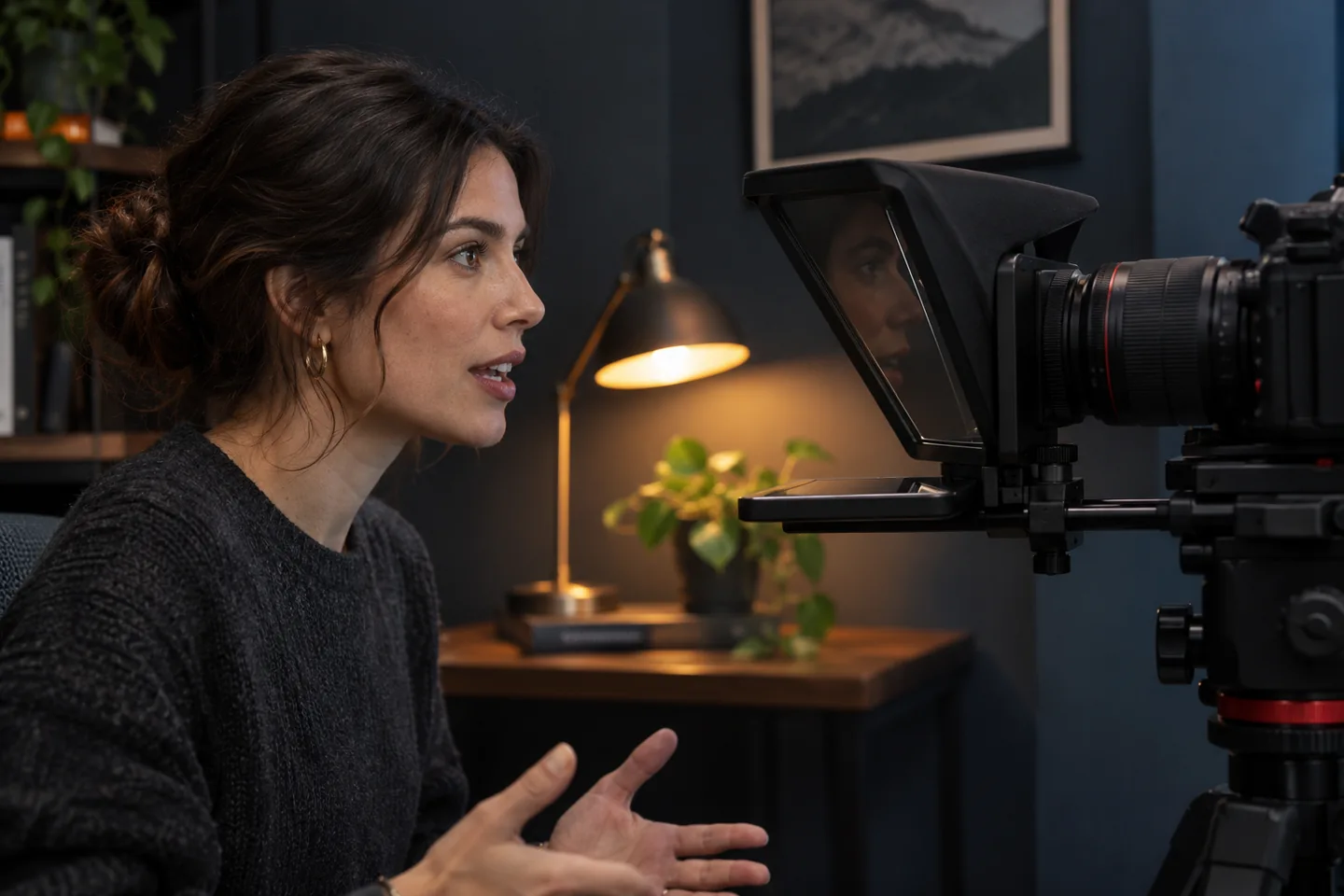
Put the script close to your camera lens, narrow it to a few words per line, and record a short test before the full video. Use voice-follow if you pause or change pace often. Use fixed scroll if you’ve rehearsed to a steady rhythm or want consistent timing across takes.
For your first recording, a laptop webcam and a prompt window just below it are enough to test the setup. If your eyes keep drifting off-camera, move the active line closer to the lens before adjusting the scroll speed.
Choose voice-follow, fixed scroll, or cue cards
| How you want to deliver the video | Start with | What to check |
|---|---|---|
| You pause for emphasis or vary your pace | Voice-follow | Select your microphone and test a pause, a name, and a restart. |
| You need repeatable timing for a scripted read | Fixed scroll | Rehearse the whole section once and adjust until you can finish a phrase without rushing. |
| You know the material and need only a few reminders | Bullet cues on a stationary screen or card | Glance between sentences and deliver each full thought to the lens. |
Fixed scroll moves at a set speed until you pause or stop it. Voice-follow uses a microphone to advance through the script as you speak. Elgato Studio 2.0’s Virtual Prompter offers both modes and can dock the script below the webcam. The app requires Windows 11 or macOS 15 or later. Check that Voice Sync supports your recording language, and test your microphone and any product names. Fixed scroll works when you want a constant pace. Elgato’s Virtual Prompter guide · Elgato’s Voice Sync details
Set the script at the camera’s eye line
- Raise the camera to eye level. Sit where you’ll record, look into the lens, and mark that point with a small piece of tape beside the lens if you keep watching your own preview.
- Position the script. On a laptop, dock or move the active lines immediately below the webcam. With a phone on a tripod, try a second device beside the phone lens or a prompter app that shows the text near the front camera. A beam-splitter rig reflects the text in front of the lens, which helps when an offset is obvious in a close shot.
- Set text width and size at recording distance. Start with four to seven words per line and enough space between lines to find the next one easily. Increase the type size if you squint. Narrow the text column if your eyes sweep from side to side. Keep the line you’re reading near the lens as it scrolls.
- Check the recording source. If you use a prompt overlay during a screen recording, review a test export to see what the recorder actually captures. A second device keeps the script outside the screen capture.
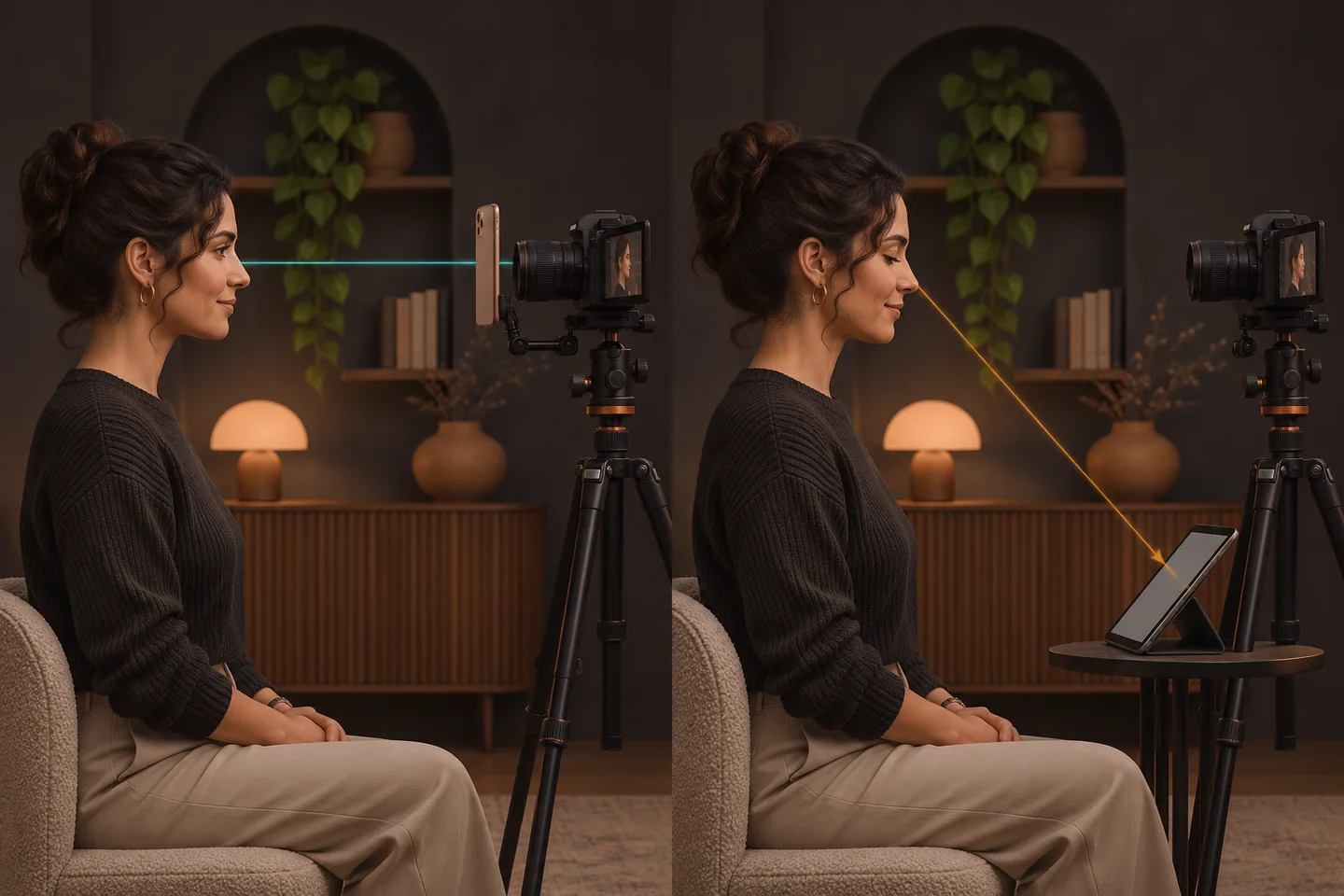
Concept illustration of two script positions. Keep the line you are reading near the lens to reduce visible changes in your gaze.
In Clipchamp for work or school, open Record & create, choose Webcam, and select Teleprompter from the recorder’s three-dot menu. Microsoft’s Clipchamp webcam guide
Practice a short read before the full take
Break your script at natural phrases and add blank lines where you want a breath. Put a pause cue on its own line until you remember the rhythm. This practice script is for a talking-head introduction to a product tutorial.
Here’s how to find your draft.
Open the video library
and choose Drafts.Pick the clip with today’s date.
You’ll see the preview
and the latest notes on the right.Start with the newest note.
Read it aloud once with the script still, leaving a beat after “Drafts.” Time your own read. If you have a rough words-per-minute setting, a 40-word script read in 20 seconds is about 120 words per minute. If the app uses an unnumbered slider, use the same test script and adjust until your first and last phrases are comfortably on screen.
Then record two passes with the same framing and microphone. In fixed scroll, check whether the next line is easy to reach after the pause. In voice-follow, check whether the script holds around that pause and resumes when you say “Pick the clip.” Watch both tests with the sound off to compare gaze. Listen again with the screen turned away to catch rushed words or a flat delivery.
Fix the problem you can see or hear
| What you notice | Change for the next test |
|---|---|
| Your eyes dip after each sentence | Move the active line closer to the lens and hide or shrink your self-view. |
| Your eyes scan from side to side | Narrow the column. Add a new line where you naturally group words. |
| You rush at the bottom of each section | Slow fixed scroll a step, shorten the sentence, or switch to voice-follow. |
| Voice-follow stalls on a name or restart | Check the selected microphone and language, then try the phrase again. If it keeps stalling, use fixed scroll for that section. |
| The delivery sounds read aloud | Say the sentence once from memory. Edit the script to match the way you just said it. |
| The script appears in the recording | Capture only the window you need, or move the script to a separate screen or device outside the capture. |
Record long scripts in sections with a short beat before and after each one. Start each retake at the beginning of the sentence so you have a clean edit point. After recording, use the guide to trimming silence without clipping words and the video quality checklist to review the final file.