
How to Make a Personalized New Year Video for Real Estate Clients
 ReelBoop
Record one New Year greeting for real estate clients, add individual name overlays, and send each copy privately. Includes a sample script and send checklist.
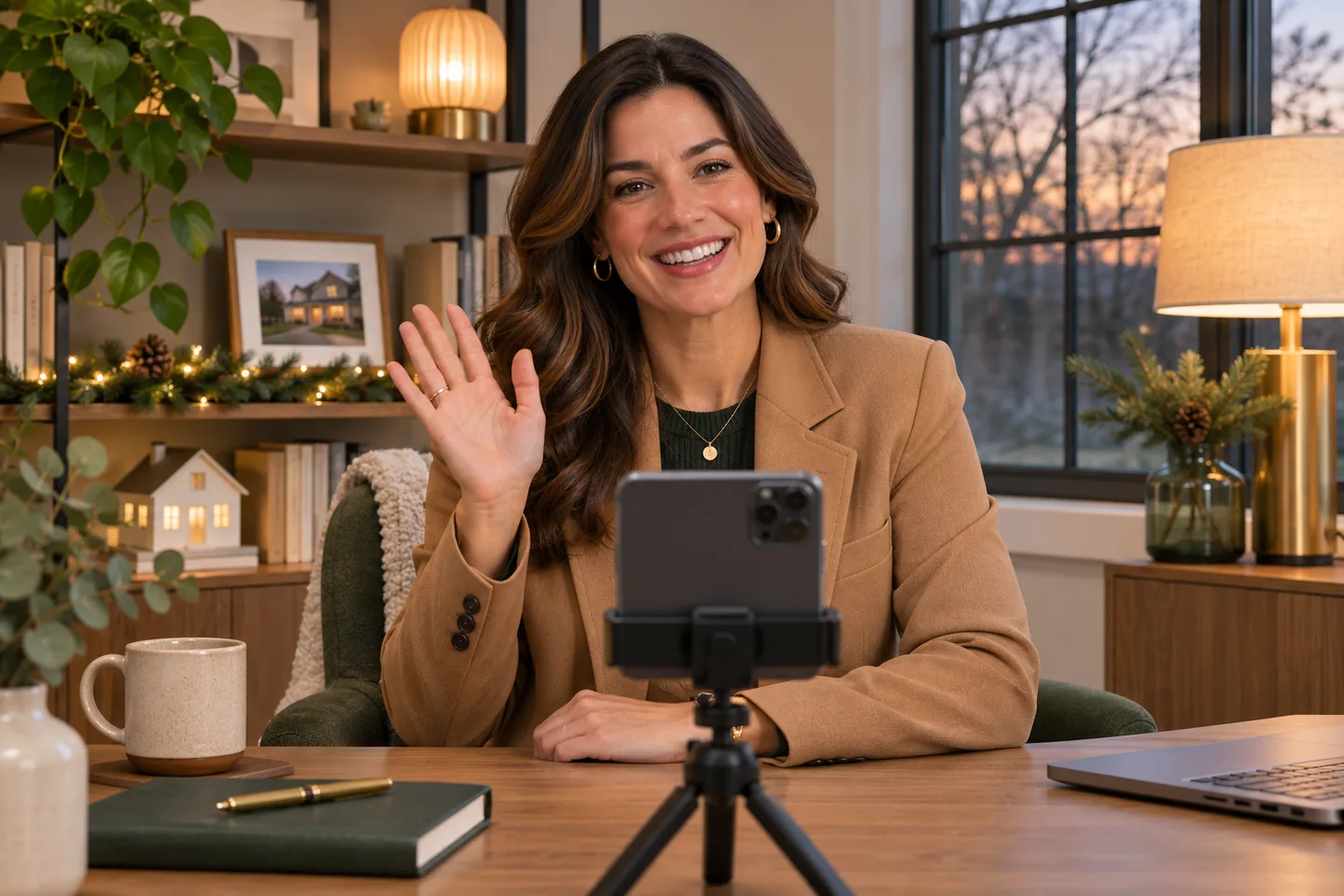
Record one short New Year greeting, then send it to each real estate client with a personal note. To put their name in the video itself, keep one master edit and export a copy for each recipient with their first name on screen. If you want to say the client’s name aloud, record a separate opening line and attach it to the same greeting.
Use a direct email or text thread the client already uses with you. Keep the video focused on a thank-you and a New Year wish. Put any relevant personal note in the individual message, and keep addresses, sale prices, and transaction details out of the video.
Choose how much to personalize
| Approach | When it fits | What changes for each client |
|---|---|---|
| One shared greeting, individual messages | The same spoken thank-you fits a group of past clients. | Write a short personal line in each message. Reuse the same MP4. |
| First name on screen | You want the greeting itself to feel addressed to the viewer. | Change one title in the master edit and export one MP4 per recipient. |
| A separately recorded opening | You want the client to hear their name or a personal thank-you. | Record a short hello, check the pronunciation, then cut to the shared greeting. |
If you’re greeting both former clients and people you have yet to work with, write a separate base line for each group. “Thank you for trusting me with your move” fits a real client relationship. “It was lovely getting to know you this year” works for someone you met at a viewing.
Record the greeting once
Aim for 15–25 seconds for a simple thank-you. Put your phone at eye level, face a window, and record where your voice is clear. Put files and mail out of frame, and leave space for a first-name title away from your face and captions. Pick your framing before filming. A vertical clip can fill a phone screen, while a horizontal clip works if you also plan to reuse the generic greeting on your website.
This sample script is for past clients. Say it once at your usual speed, then leave a beat at the start and end so you have room to trim.
Happy New Year! Thank you for trusting me with such a big step. I hope the year ahead brings you good company, a little time to settle in, and plenty to look forward to. Wishing you all the best.
If you’re recording separate openings, keep the phone and microphone in the same positions. Leave a short beat after the hello, then trim at the pause so the opening joins the base clip cleanly. For a visual opener, turn a full-body photo of yourself into a mountain scene with the Hello 2027 video template.
Add a first-name title and export individual copies
- Finish the master. Trim the greeting, check the caption timing, and add a simple opening title such as Happy New Year, Maya! Hold the title for the first three seconds as a starting point. Preview it on a phone and keep it clear of the captions.
- Duplicate the master project. In Clipchamp for personal accounts, open the project menu on the home page and choose Make a copy. Open the copy, select the existing title on the timeline, and edit the name in the text settings. Drag its trim handles to adjust how long it stays up. Microsoft’s project-copy instructions · Microsoft’s title-editing instructions
- Export and label each copy. Export an MP4 and give it a unique filename, such as
new-year-001.mp4. Reopen the exported file and check the title against your send list. Repeat with a second client before working through the rest.
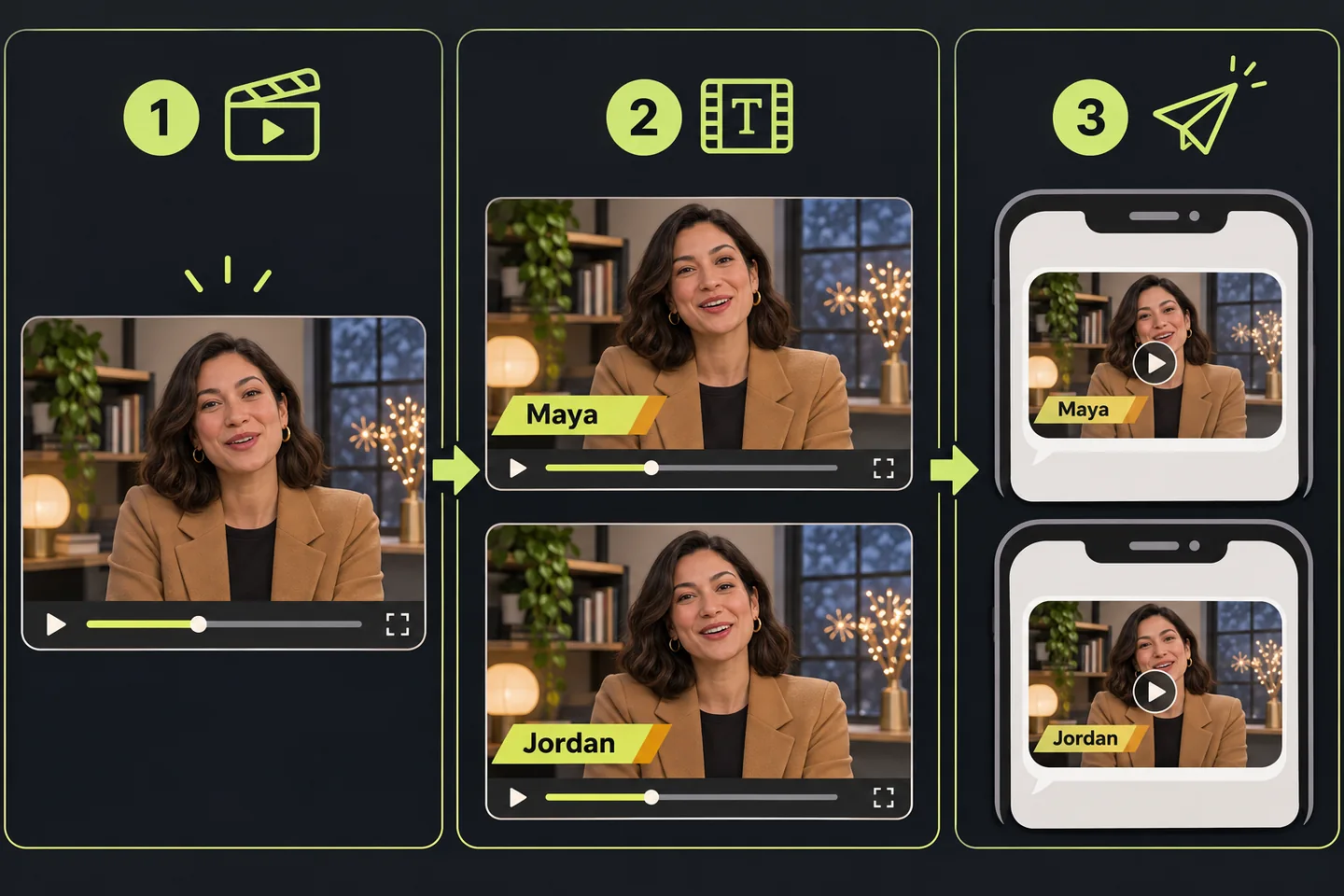
Concept illustration of the manual workflow. Give each name title its own export and match it to the recipient before sending.
If you use Clipchamp’s automatic captions, review the transcript before duplicating the project. For a separately recorded opening, check the captions on that copy too, especially the client’s spoken name. Microsoft’s caption-editing instructions
Match the export to the person before you send it
Use a small private list with the client’s preferred first name, their usual contact method, the export filename, and a status such as Ready or Sent. Here are two example entries with fictional names.
| Recipient | On-screen title | Export | Delivery |
|---|---|---|---|
| Maya | Happy New Year, Maya! | new-year-001.mp4 | Existing email thread |
| Jordan | Happy New Year, Jordan! | new-year-002.mp4 | Existing text thread |
Send one message per person. If you share a link through Google Drive, upload the video to a private, unshared folder. On the individual file, set General access to Restricted and add the intended email address as a Viewer. Confirm People with access lists only you and the intended viewer before sending. When you plan to send the link in your usual channel, clear Notify people while granting access. Google Drive’s file-sharing instructions
Here’s a short message to send with Maya’s example video.
Hi Maya, I wanted to send a quick New Year wish. I hope the new place is starting to feel like home. Happy New Year! — Alex
Run the last check from the message draft
- Open the exact video attached or linked in the draft.
- Match the recipient address or number, message greeting, and on-screen name.
- Watch the clip on your phone. Check that the title and captions are readable and any separately recorded opening matches the main greeting in volume.
- If you used a link, confirm that file lists the intended recipient as a Viewer and access is limited to the two of you.
- Mark that row as sent once the message goes out.
For a larger batch, run the video delivery checklist on the master first. Then give each recipient’s copy the shorter check above.