
Gemini Omni 1.2 Flash
Generate a 3–15-second video from a prompt, or use photos, clips and audio to guide your shot. Then revise individual details in the same take.
Open Google Flow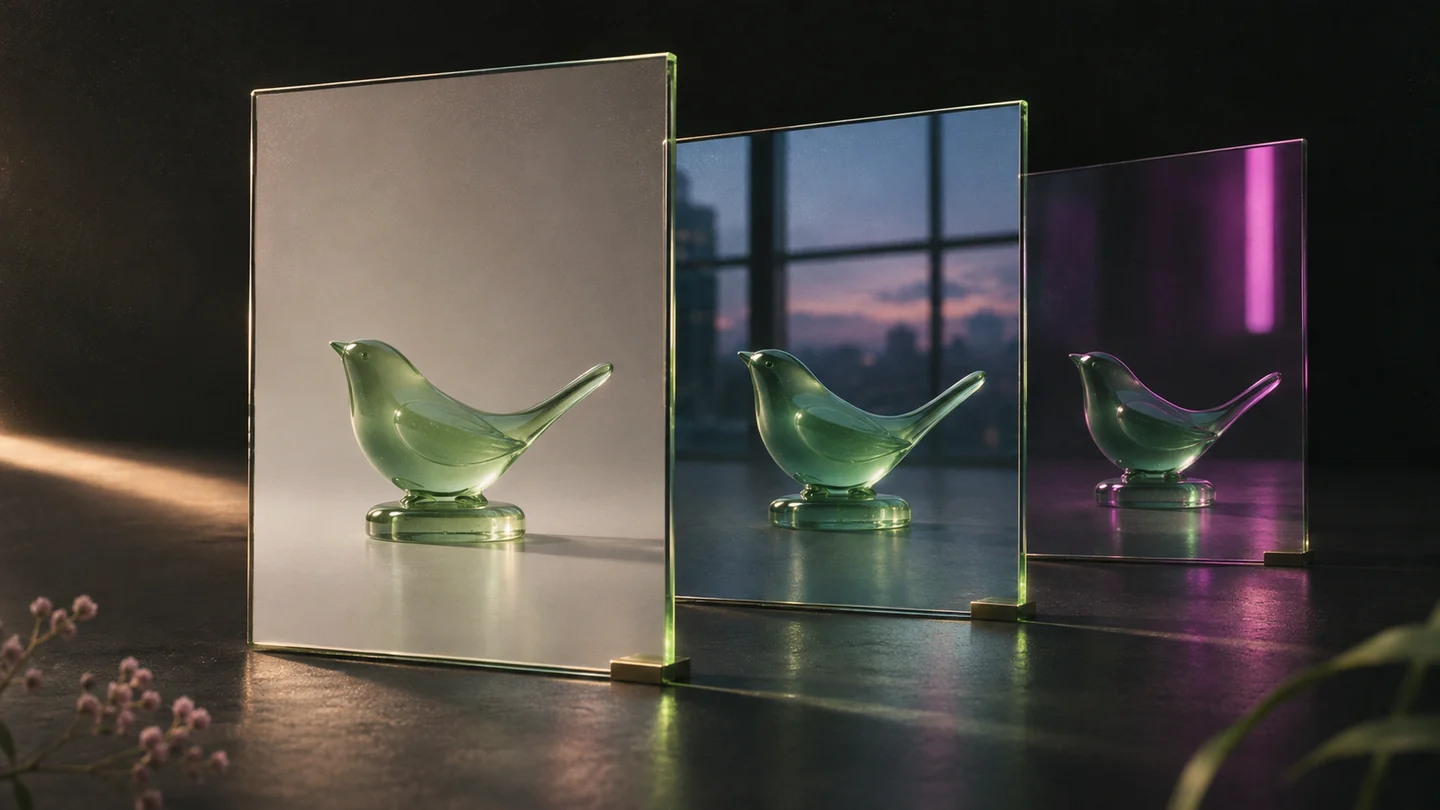
What changed in Omni 1.2 Flash?
Google raised the native clip limit from 10 to 15 seconds and supports one-second steps from 3 to 15. That gives you room for a longer dialogue beat or a slow product reveal. You can also revise the full shot over multiple turns and use a short motion reference alongside images and audio cues. Read Google’s release notes and watch its examples.
Prompts for three everyday edits
Relight a shot
Change the window light to late afternoon. Keep the original 9:16 framing, the glass bird centered on the desk, and the slow camera push at the same speed.
Check the result. Look for the same silhouette and desk marks. Reflections should move with the light while the camera motion stays steady.
Refine the same take
Keep the approved late-afternoon lighting. Soften only the shadow on the desk. Keep the same shot length, camera motion, and sound.
Check the result. Compare the beginning, middle, and end with the approved take. Listen at the cut to catch any change to the audio.
Build a short product shot
Use the photo as the product reference. Create a 6-second close-up of the bottle on a stone shelf. Hold the front label for two seconds, then arc slowly to the right. Use quiet room tone.
Check the result. Read the label on the first frame and inspect it again as the bottle turns. Use a tracked overlay in your editor if the wording must match exactly.
What to look for in Google’s demo
In the multi-turn demo, the scene moves from a tent to a forest and other locations while the two performers keep the same staging and framing. Use that clip to see how a backdrop edit can preserve the original action.
Check edges in motion
Pause when a performer crosses a bright background. Compare fine outlines and shadows to spot any changes carried over from the previous setting.
Background editing guideCheck the approved details
Keep one reference export and compare the same timecodes after each pass. For an ad, check the exact wording on the label, the product color and the audio.
Video quality checklistFrequently asked questions
What is Gemini Omni 1.2 Flash?
It is Google’s video generation and editing model. It can use text, images, video and audio, and returns video with audio.
How long are Gemini Omni 1.2 Flash videos?
Google lists native clips from 3 to 15 seconds in one-second steps. Short motion reference clips are a separate input and can be up to 3 seconds.
Is 4K native?
Google describes 360p and 720p as draft or generation options and 1080p and 4K as upscaling options. Check the export options in the Google product you use.
How much does Gemini Omni 1.2 Flash cost?
Google announced a 720p API output rate of US$0.07 per second. At that rate a 6-second clip costs US$0.42 and a 15-second clip costs US$1.05 for 720p output alone. Check the pricing for inputs, retries and upscaling before budgeting a batch.
Can I generate Gemini Omni video on ReelBoop?
Gemini Omni runs in Google’s tools and API. ReelBoop’s separate photo-to-video tool uses its own available models and shows the credit cost before you generate.
Pick a workflow for your footage
Bring a still photo to life, or compare tools for editing a shot you already have.