
MODEL GUIDE · VIDEO EDITING
Runway Aleph 2.0
Transform footage you already have. Explore how Aleph 2.0 edits a shot with instructions and keyframes, and when to use it.
Explore Runway’s guideAleph 2.0 is provided by Runway and is not currently available on ReelBoop.
START WITH A SHOT
Edit the shot you already have.
Runway Aleph 2.0 is an AI video editing model built around existing footage. Change a background, outfit, object or lighting while asking the model to preserve the rest of the shot. Review the result closely, especially faces, details and continuity in motion.
WHAT YOU CAN EDIT
One shot, new possibilities.
Change the setting
Replace the background in a shot you already have.
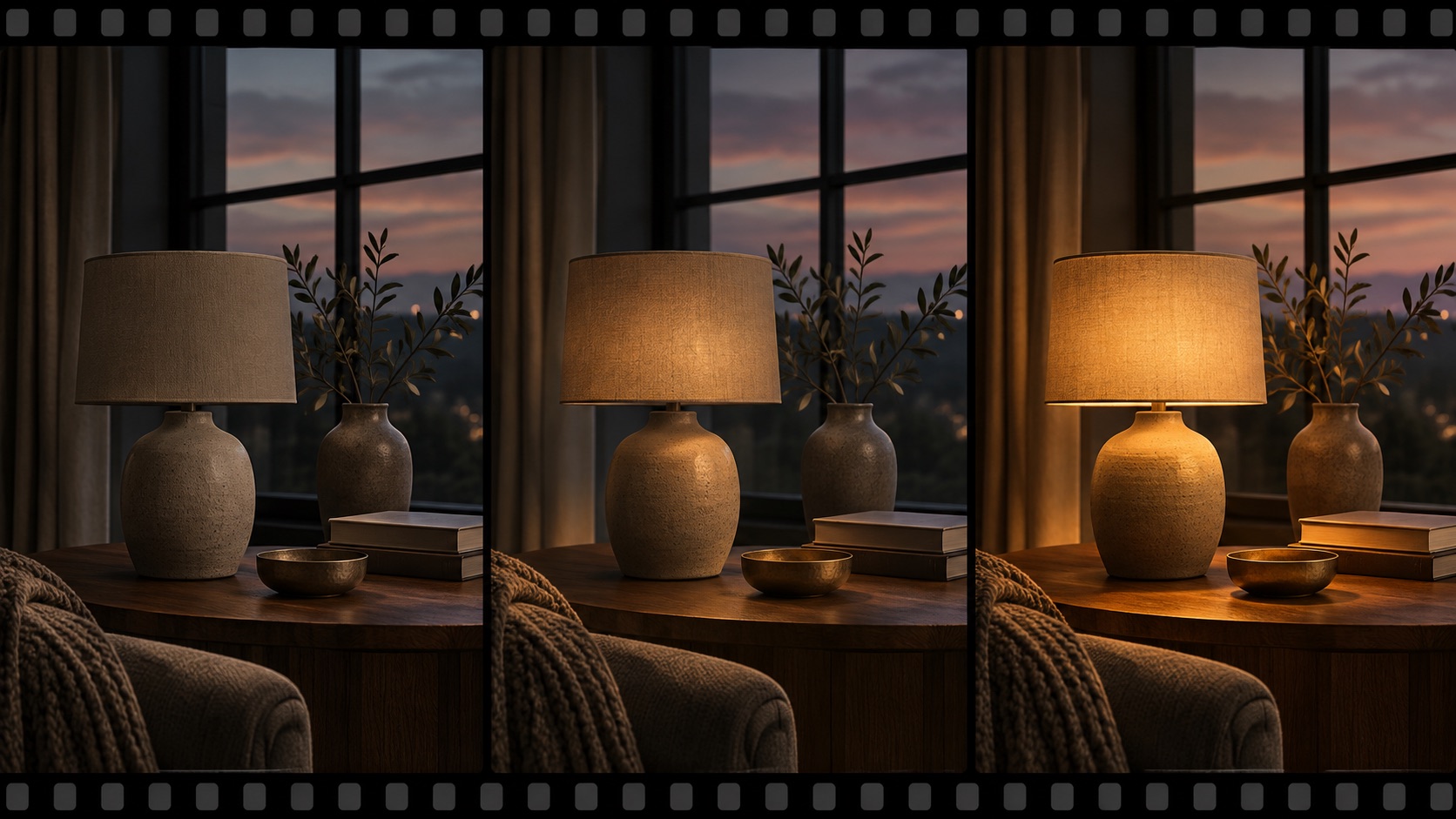
Relight a scene
Change the lighting mood without shooting the scene again.
Replace an object
Use an instruction or keyframe to change an item in the shot.
Restyle a look
Change clothing, accessories or the visual style of a sequence.
HOW IT WORKS
How to use Runway Aleph 2.0
Choose your footage
Start with a clear 2–30 second clip and identify the motion and camera work you want to keep.
Describe the edit
Use a concise instruction for the change. Edit a keyframe when you need more specific visual direction.
Generate and review
Check the credit quote in Runway, then inspect the edited shot for the intended change and continuity.
CHOOSE YOUR STARTING POINT
Edit a video, or animate a photo?
The two workflows start with different inputs. Choose the one that fits the material you have.
Aleph 2.0
Upload existing footage to Runway and edit elements such as the setting, objects or lighting.
Explore the editing workflowPhoto to video
Start with a photo to create a video, or browse trend templates.
Explore photo to videoPLAN A PRECISE EDIT
Choose a frame where the change is easy to judge.
Runway’s Single edit workflow lets you preview an edited keyframe before applying it to the video. Select a frame that clearly shows the target, then use a short instruction with an action and a specific visual change. These original prompt examples give you a place to start.
A warmer interior
Start with
A room shot with visible windows, furniture and a steady camera move.
Try this instruction
Relight the room with warm late-afternoon sunlight from the window.
Check in the result
Follow window edges, light direction and furniture shadows as the camera moves. Decide whether the changed lighting stays coherent across the shot.
One product change
Start with
A clear tabletop shot where the object remains visible throughout.
Try this instruction
Replace the white vase with a cobalt-blue ceramic vase.
Check in the result
Watch the new object’s outline, reflections and contact with the table, especially when a hand or another object passes in front of it.
A different outdoor mood
Start with
A street or garden clip with a clearly visible background.
Try this instruction
Change the scene to a misty early morning with soft cool light.
Check in the result
Compare foreground edges and the strength of the mist over time. Keep attention on whether the subject remains legible in the new atmosphere.
REVIEW THE WHOLE SHOT
A good keyframe is the beginning of the check.
Confirm the intended edit
Compare the edited keyframe with the source. Verify the requested object, light or setting before applying the change to the selected range.
Follow movement and occlusion
Inspect moments when the camera turns or a subject passes in front of the edited area. These moments make changes in edges and shape easier to notice.
Check what carries through
Watch the final frame and play the whole shot again. Look for the same visual direction and continuous motion from beginning to end.
FAQ
Runway Aleph 2.0 questions
What is Runway Aleph 2.0?+
It is Runway’s in-context video editing model. It starts with existing footage and changes the scene using an instruction or edited keyframes.
How do I use Runway Aleph 2.0?+
Open Edit Studio in Runway, upload a video, select the range to edit, describe the change or edit a keyframe, then generate and review the result.
What inputs does Aleph 2.0 need?+
A source video is required. Text instructions and keyframes can guide the change; the exact inputs depend on the editing workflow you choose.
How long can the input video be?+
Runway Edit Studio supports videos from 2 to 30 seconds, with input resolution up to 1080p. Check Runway’s current upload and trimming rules before you start.
Is Aleph 2.0 free, and how is it priced?+
Runway charges credits for generated video duration. Keyframe creation and some output options may cost extra. Check the current quote and plan on Runway before generating.
How is Aleph 2.0 different from Gen-4?+
Aleph 2.0 edits existing footage. Gen-4 video generation starts from an image and a prompt. Choose based on whether you want to change a shot you already have or create motion from an image.
Is there a Runway Aleph 2.0 API?+
Yes. Runway offers the aleph2 model through its video-to-video API. See the developer documentation for current parameters, availability and pricing.
Can I use Aleph 2.0 on ReelBoop?+
Not currently. ReelBoop does not offer Runway Aleph 2.0.
KEEP EXPLORING
Make something from a photo.
Explore photo-to-video tools and trending templates on ReelBoop.
Sources: Runway Edit Studio · Aleph 2.0 Prompting Guide · Runway API