
WHAT SEEDANCE 2.5 BRINGS
Direct the movement around a strong first frame.
ByteDance positions Seedance 2.5 around longer storytelling, reference control and video editing. This ReelBoop creator uses its single-image mode for a five-second silent shot. Start by separating the subject action, camera movement and details that need to remain recognizable.
A visual starting point
The photo establishes the product, person or place. Use it to settle color, light and framing, then spend the motion prompt on what happens next. A complete, uncluttered subject gives you clearer details to compare in the finished clip.
Motion described in plain language
Name the action and its pace: a curtain lifts slowly, a person turns toward the window, or the camera makes a small arc around a product. Give five seconds one main event and describe how the shot should finish.
Camera and subject as separate choices
A still product with a moving camera reads differently from a moving product with a locked camera. Choose the combination deliberately. For a catalog shot, a restrained camera move makes the silhouette easier to follow; a gesture can carry a portrait.
Broader reference workflows to consider
The Seedance 2.5 family also supports multimodal reference and editing workflows. Those are useful when existing footage supplies the performance or timing. The creator above takes one starting image; choose a dedicated video workflow when your source motion is central to the brief.
A PRODUCT SHOT TO PLAN
A rigid bottle. A soft ribbon. One camera move.
Use this shot concept to decide which part of the image should move. The glass bottle provides a clear shape to track; the silk adds a separate, gentle movement. The prompts below are starting briefs for your own image.
SHOT PLANNING
Let the motion reveal the product.
The complete bottle, visible cap and open space on both sides suit a modest camera arc. Begin with the version that keeps the bottle still, then compare the result against the visual details that matter to your product.
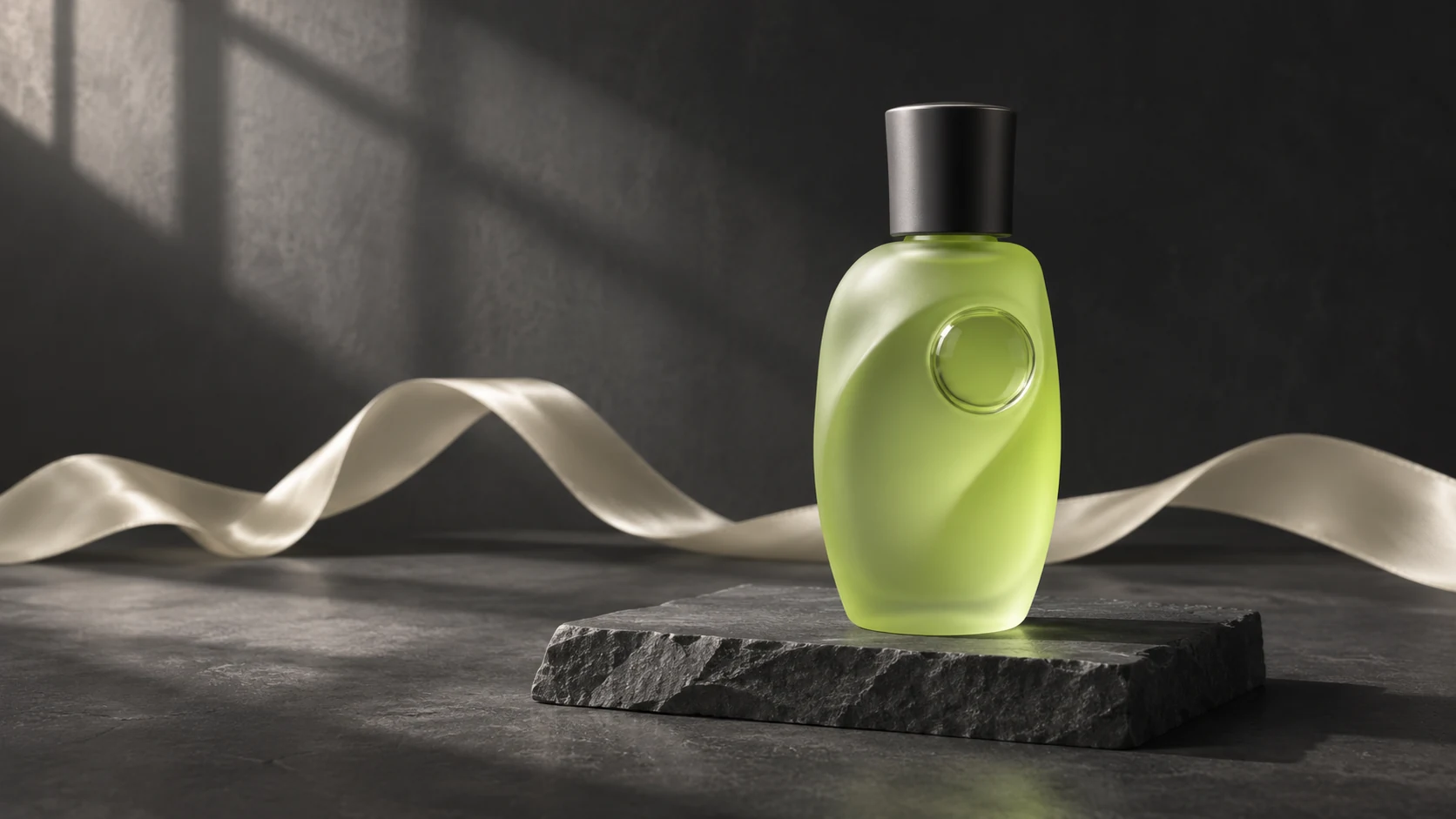
Concept illustration for planning a stable product and a small camera arc.
Try a gentle camera arc
A slow, small camera arc around the glass bottle. The bottle stays upright and still on the stone plinth. The ivory silk ribbon moves softly in a light breeze. Keep the cap, bottle outline and lighting consistent. End with the complete bottle in view, in one continuous shot.
Try a locked-camera version
Locked camera on the glass bottle and stone plinth. A light breeze gently lifts one fold of the ivory silk ribbon behind the bottle. The bottle and cap remain still. Keep the product fully visible with the same soft studio lighting throughout the shot.
Review your clip for
- Shape continuity: compare the cap, shoulder and bottom edge at the start, middle and end. A successful product shot needs a recognizable silhouette throughout the movement.
- Separated motion: check that the ribbon moves without dragging, bending or merging with the bottle. The plinth should continue to support the product.
- Camera intent: the arc should reveal a little depth at a steady pace. An unintended cut, sudden zoom or drifting horizon changes the brief.
- A usable ending: pause the final frame. Keep the complete product inside the frame and leave the space you need for a later title or edit.
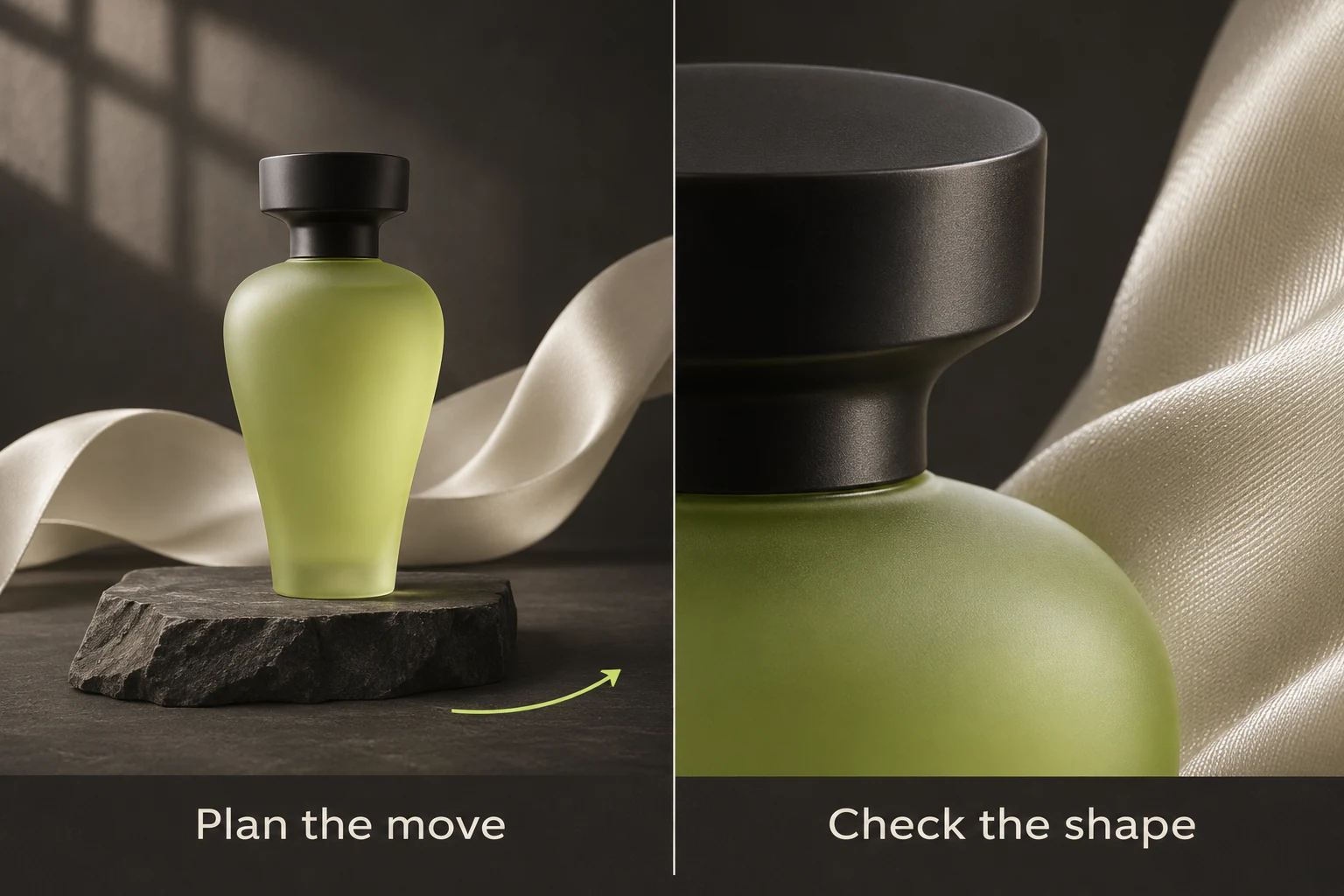
Concept studies: plan the movement, then inspect the shape and material edges in your video.
MATCH THE SHOT TO THE JOB
Give five seconds a specific purpose.
Choose the detail your viewer should notice, then set the size of the movement around it. These are planning suggestions; judge the generated clip against your own input.
A product insert for a short ad
Start with the complete object and ask for a small push or arc. Check packaging, labels and reflections at full size. Keep final sales text in your editor so you can place it precisely.
A portrait with one readable gesture
Use a clear face, a relaxed pose and room around the head and hands. Ask for one small turn, glance or hand movement. Review facial features and fingers as the gesture develops.
Atmosphere in a still location
A curtain, foliage or hanging fabric can carry the movement while the room stays still. Name one environmental action and a camera position so the scene has an obvious focus.
A reference-led performance
When an existing video defines the dance, pose or timing, begin with a workflow that accepts that video. ReelBoop’s video-swap tools and fixed trend templates have their own inputs and prices; review the specific page before choosing.
SETTINGS AND MODEL CHOICE
Choose for the source and the delivery.
On ReelBoop, Seedance 2.5 is a fixed five-second, 480p, silent option at 100 credits. You can choose the starting photo, motion prompt and landscape or portrait frame. The model selector shows the quote for each alternative.
FRAME
Pick the composition before writing the move
Use 16:9 for a wide setting or a product with space to the side. Use 9:16 for a vertical portrait or a full-height subject. The creator fits your complete photo into the selected frame, so a mismatched source can leave empty space around it.
FIVE-SECOND ALTERNATIVE
Consider Kling 3.0 Pro for the same shot length
Kling 3.0 Pro is another single-photo, five-second silent option, currently 60 credits. Its guide includes a real starting-image and video pair you can inspect. Compare the clip length, settings and displayed credit cost for your shot.
SIX-SECOND ALTERNATIVE
Check Veo 3.1 Fast for a 720p brief
The current Veo option is a six-second silent 720p clip for 40 credits. Read its access notice before planning around it, then choose based on the delivery you need and the visible quote.
SOURCE VIDEO
Use the motion you already have
A starting photo asks the model to invent movement. For a task centered on existing footage, the video-swap tool explains how to prepare the source video and replacement photo.
MAKE THE SHOT
Prepare, direct, then review the full clip.
- 01
Prepare one complete photo
Upload a JPG, PNG or WebP up to 5 MB. Choose 16:9 or 9:16 and check the prepared image. Give faces, hands and product edges enough room for the movement you want.
- 02
Write the action and camera behavior
Keep Seedance 2.5 selected. Describe one main action, its pace and the camera movement, then review the five-second, 480p, 100-credit quote. The current setting produces a silent clip.
- 03
Inspect before using the video
Sign in to generate and follow the task in My creations. Once it is complete, play the whole clip and compare the opening, middle and final frame before downloading it for your edit.
FAQ
Seedance 2.5 questions
Which Seedance 2.5 mode does ReelBoop use here?
This creator uses Seedance 2.5 image-to-video: one starting image and a motion prompt, with a fixed five-second 480p silent output.
Can I make a 30-second Seedance video here?
ByteDance describes up to 30-second generation for Seedance 2.5. ReelBoop currently offers five seconds in this creator. The duration is fixed; a longer duration is not an option in the form.
Can I upload a reference video or multiple images?
This creator accepts one starting photo. Seedance’s broader reference capabilities use a different workflow. If you need to work from existing movement, open a dedicated video or trend tool and check its inputs.
What photo files can I use?
Upload one JPG, PNG or WebP up to 5 MB. A clear, complete subject with room around its edges is a useful starting point. Choose landscape 16:9 or portrait 9:16 in the creator.
Does the clip have audio?
The current ReelBoop setting creates a silent clip. You can add music, sound effects or narration in your video editor after downloading it.
How much does a generation cost?
The current Seedance 2.5 quote is 100 ReelBoop credits for a five-second 480p clip. Review the selected model and quote before submitting. Generation requires an account and enough credits.
What should I check in the finished clip?
Watch the full clip and pause at the start, middle and end. Compare the subject’s shape, face or hands, background stability, camera direction and final framing against your photo and motion brief.
Where can I play and download my video?
My creations shows task progress. When a video is complete, you can play it and download it there.
Model references checked November 8, 2026ByteDance Seedance 2.5 overviewSeedance 2.5 image-to-video API