
How to Make a Seamless Video Loop
 ReelBoop
Make a seamless video loop from a clip or still image. Compare a before-and-after example, then follow steps in Clipchamp, Firefly, or FFmpeg.

To make a seamless video loop, cut one full cycle of an action and check the join from the last frame back to the first. Match the subject's position, the camera framing, and the direction of motion. If you have a still image instead, you can ask a video model with first and last frame inputs to animate a return to that image, then check the result in an editor.
See what changes at the join
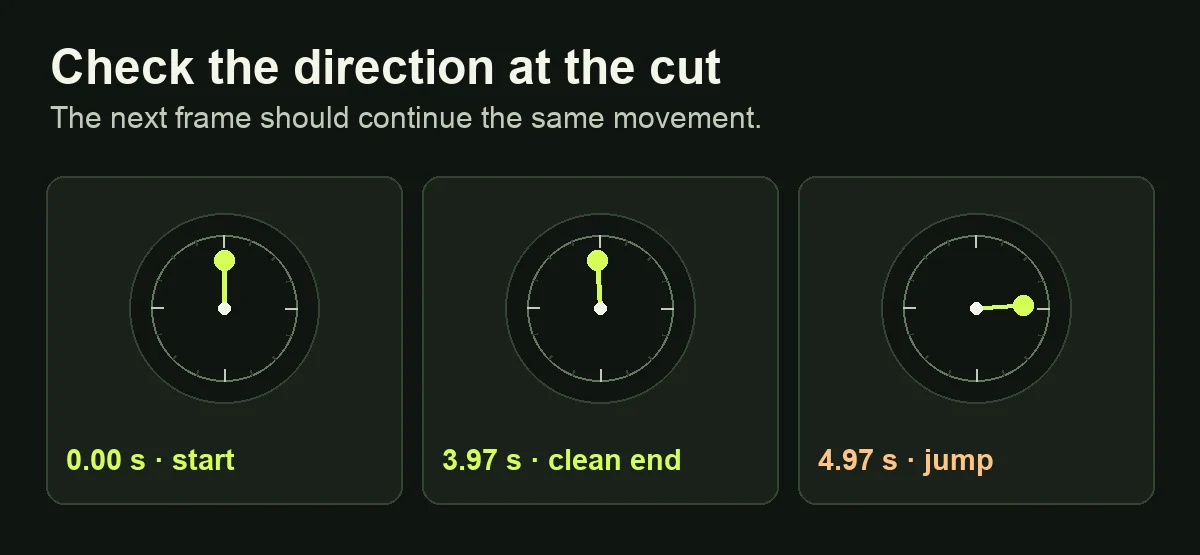
Play the two versions of this motion demo. Watch the colored marker as it reaches the top of the dial. The five-second cut restarts partway through its second turn. The four-second edit completes one turn, so the next frame carries the movement forward.
Before editing · The marker jumps when the five-second clip restarts.
After editing · One four-second turn continues into the next.
Try the same trim in Clipchamp’s free editor. With a personal Microsoft account, you can edit your own footage and export up to 1080p for free.
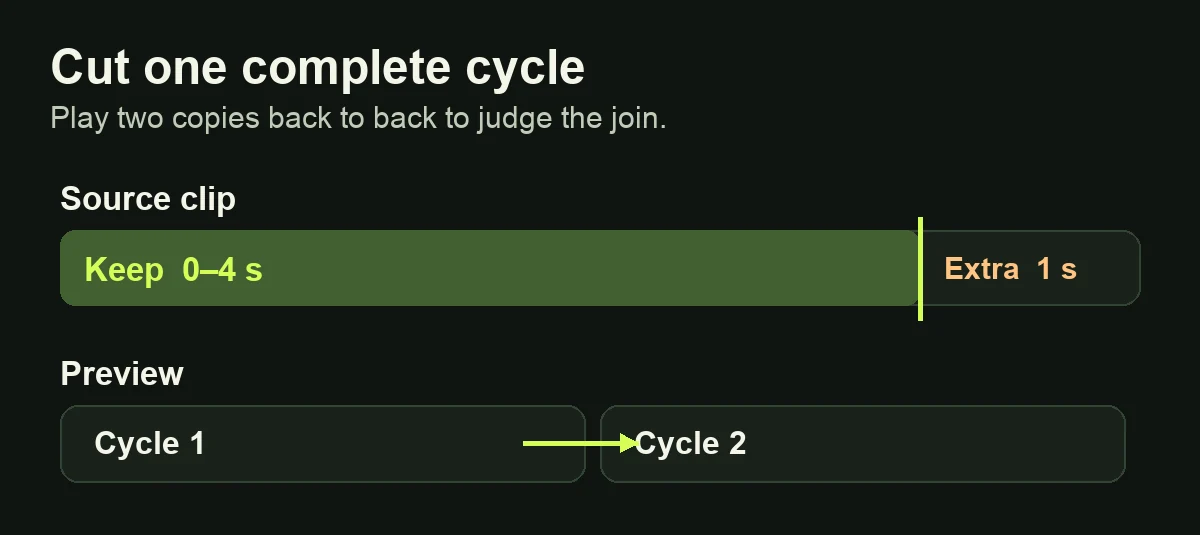
When you trim a clip, put the out point at the first frame of the next cycle. The exported cycle should end just before that frame, so the opening pose plays once at the join. If the two poses look alike but the motion reverses direction, keep looking for a better match.
| Your source | Method to try | What to check |
|---|---|---|
| A rotating object, repeating step, or swaying plant | Trim one complete cycle | Position and direction carry across the cut |
| Nearly still footage with small changes in texture | Blend the last moments into the opening | Edges stay clear through the blend |
| An action that looks natural backward | Play forward, then reverse a copy | Both changes of direction feel intentional |
| A still image you want to animate | Use the same still as the first and last frame | The movement returns without a freeze or a flash |
Trim and test the loop in Clipchamp
This works in a timeline editor with trim and duplicate controls. Microsoft Clipchamp is one browser-based option.
- Start a blank video. Under Your media, choose Import media, then drag the clip onto the timeline.
- Select the clip. Move the playhead to the beginning of a cycle and choose Split. Split again at the start of the next cycle. Delete the pieces before and after the cycle and close any gap at the start of the timeline.
- Right-click the trimmed clip and choose Duplicate. The copy appears to its right. Play across the join at normal speed. If a foot or an object hesitates, adjust the trim slightly, then duplicate the adjusted clip and check again. Microsoft's duplicate instructions
- For a player that repeats the clip, keep one cycle. For a file that must play several cycles on its own, keep as many copies as you need. Select Export and choose a resolution. Play the exported MP4 through at least one join. Turn on repeat in the player if you exported a single cycle. After posting to Instagram Reels, watch it restart. If the Reel pauses, play two copies of the exported MP4 back to back in Clipchamp to check whether the pause is in the file.
For a dancer, compare the planted foot and shoulder angle across the join. Use a background edge to catch a shift in the camera. If you need a closer look, extract the two frames and compare them side by side.
Generate a loop from an image with first and last frames
A keyframe here is a still image that guides one end of the generated clip. A model that accepts two keyframes can use the same still at both ends. Start with a fixed view and an action with an obvious way back, such as a hanging paper ornament turning and returning to face the camera.
- In Adobe Firefly, open Video → Generate video and choose Firefly Video.
- Select the aspect ratio. In Frame, add the same still under First and Last, keeping the crop the same in both slots.
- Describe the motion between the stills. Select Generate and download the clip from the history strip when it is ready. Adobe Firefly's keyframe instructions
A paper ornament gently turns toward the right and returns to its opening position, facing the camera. The camera stays fixed. Keep the background and lighting steady. The ornament slows naturally as it returns.
Matching frames gives the model a target. The clip can still pause or change speed at the join, so duplicate it in your editor and check the restart. Trim any unwanted hold or choose a gentler movement if you need another take. ReelBoop's photo-to-video creator starts with one photo and can make a draft clip for you to trim. Use a tool with both frame slots when you want to supply the ending image too.
Hide a small mismatch with a short crossfade
Use a short blend if the shot is steady and the start and end differ mostly in texture or light. For a five-second clip, reserve its first 0.4 seconds. Start the loop at 0.4 seconds and fade the reserved opening in over the last 0.4 seconds. This places the transition inside the loop and leaves the next cycle ready to begin at the same point in the action. The result is 4.6 seconds long.
A crossfade can produce a double outline on faces, hands, or products. If you see one, move the join to a quieter moment or use a straight cut on matching poses. Playing one copy in reverse is another option for a slow light pulse or a pendulum, where backward movement can look natural. It tends to stand out on one-way actions such as pouring a drink.
Optional FFmpeg command
This example uses the first five seconds of input.mp4 and writes a 30 fps H.264 MP4 without audio. Use an input at least five seconds long. The fade starts 4.2 seconds into the shortened clip, leaving 0.4 seconds to blend. FFmpeg's crossfade reference
ffmpeg -i input.mp4 -filter_complex "
[0:v]fps=30,crop=trunc(iw/2)*2:trunc(ih/2)*2,split[body][head];
[body]trim=start=0.4:end=5,setpts=PTS-STARTPTS[main];
[head]trim=end=0.4,setpts=PTS-STARTPTS[opening];
[main][opening]xfade=transition=fade:duration=0.4:offset=4.2,
format=yuv420p[out]
" -map "[out]" -an -c:v libx264 -movflags +faststart loop.mp4
Check the sound separately
First watch two copies in the editor with the sound off. Then listen for a click, a cut-off word, or a beat that arrives early. Use a matching beat for music or a short audio crossfade for background sound, then listen through the join again. If a player adds a pause when it restarts the file, check two copies on one timeline to tell the playback pause apart from an editing problem.
If you want to listen to or review the soundtrack on its own, extract an MP3 from the clip.