
UNDERSTAND THE FAST VARIANT
Plan a short scene with one readable action.
Google presents Veo 3.1 Fast as the faster variant in its Veo 3.1 family. The family’s improvements include image-to-video prompting, cinematic control and native audio. ReelBoop’s current option takes one photo and creates a six-second silent 720p clip.
Image-led scene direction
Begin with the composition you want to animate. Your photo supplies the subject and environment; the prompt describes the action, pace, camera and atmosphere. This is useful when the visual idea is already settled and you need to explore how it moves.
A Fast option for iteration
Fast identifies Google’s faster Veo 3.1 variant. Use a focused brief so each result answers a clear question: is the camera move useful, is the gesture readable, or does the scene have the atmosphere your edit needs?
A fixed six-second, 720p clip
ReelBoop keeps duration and resolution fixed for this option. Six seconds gives a small action time to develop and settle. Check fine edges and texture in the actual video, then decide whether its 720p delivery suits the size and placement of your final project.
Visual planning with a silent output
Veo’s official capabilities include audio generation, while this ReelBoop setting is silent. Plan visible action here, then add a soundtrack in your editor. A steaming cup, a moving curtain or a camera reveal can carry a scene without requiring spoken dialogue.
A MICRO-MOTION BRIEF
Let the steam move. Keep the cup still.
This cafe shot concept makes one action easy to describe. The cup rim, handle and window frame give you stable details to track while the steam develops above the coffee.
SHOT PLANNING
A quiet moment for an atmospheric insert.
Start with a still camera and a single movement. If you later try a camera push, keep the subject and other instructions the same so you can judge what that change adds to the shot.

Concept illustration for a fixed-camera scene with steam as the main movement.
Try a fixed-camera atmosphere shot
Locked camera on the coffee cup beside the rainy window. A thin plume of steam rises slowly and curls above the hot coffee. Keep the cup, handle, ledge and window frame still. Maintain the soft overcast daylight. One calm, continuous shot with the complete cup in frame.
Try a subtle push-in
A very slow camera push toward the coffee cup beside the rainy window. Steam rises gently above the coffee. The cup stays still on the ledge. Keep the rim, handle and window frame consistent as the view moves a little closer. Soft overcast daylight, one continuous shot.
Review your clip for
- A stable cup: watch the rim, handle opening and point of contact with the ledge. Those shapes should remain recognizable as the steam or camera moves.
- Readable steam: look for a gentle continuous plume rising from the coffee. Check whether it stays connected to the intended source and avoids covering the product for most of the shot.
- Background continuity: the straight window mullion and ledge make bends, jumps and unintended camera drift easier to spot.
- An editable six seconds: play the opening and ending at normal speed. Decide whether you have enough useful footage before the action begins or after it settles for your intended cut.
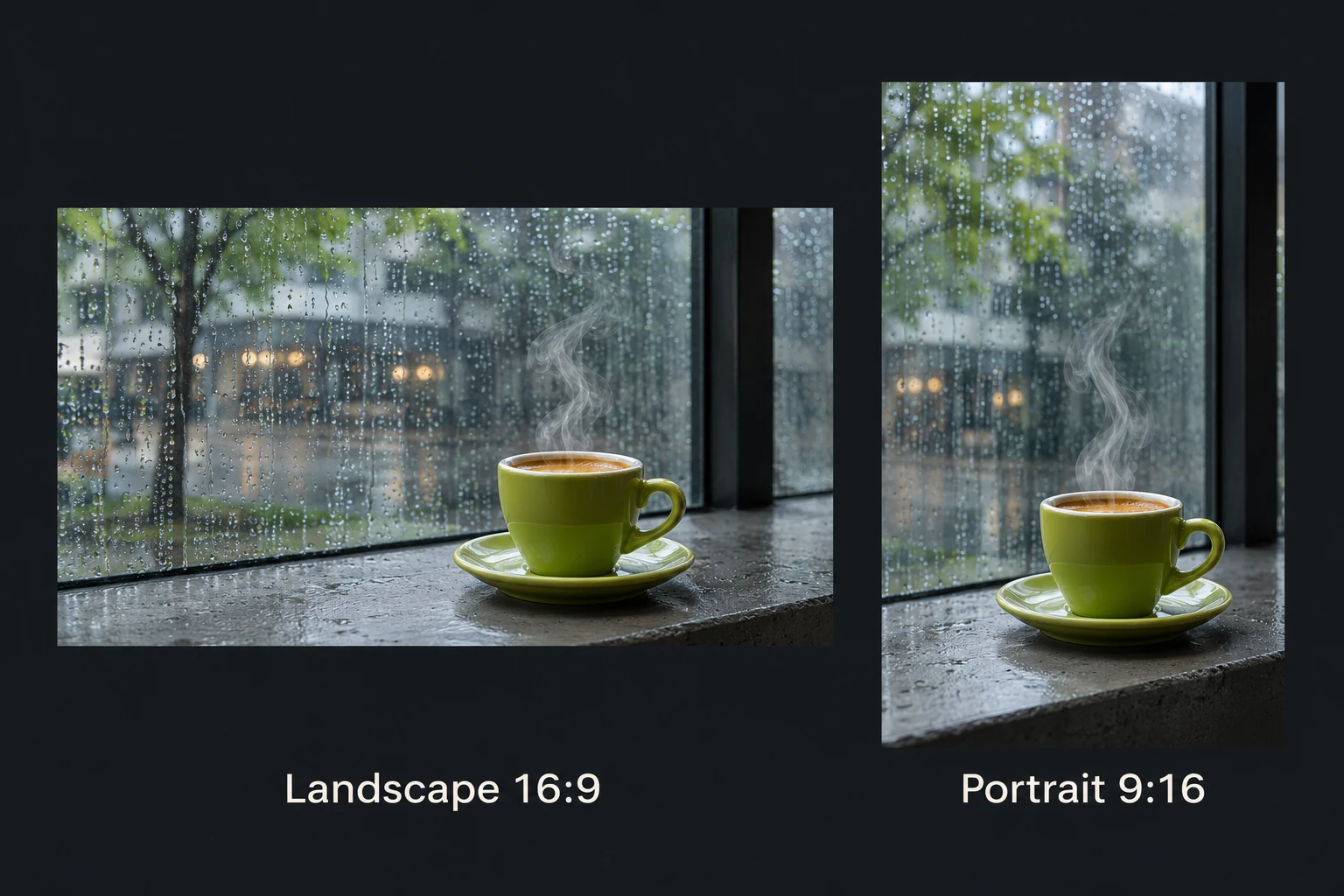
Concept compositions showing room for the whole cup and the rising steam in each frame.
COMPOSE FOR THE DELIVERY
Choose the frame around the movement.
Landscape and portrait change what the viewer can follow. Give the subject and the intended action space inside the frame before you generate.
A cafe, travel or interior insert
Use 16:9 when the setting is part of the story. A cup, window and distant background create depth; one small movement can hold attention without changing the whole scene.
A portrait-format social clip
Use 9:16 when the final placement is vertical. Keep hands, handles and tall subjects away from the edge, and leave room above any action that rises through the frame.
A product texture or detail shot
Start with a clean photo that already shows the finish you care about. Ask for a small movement or gradual camera push, then inspect fine texture and reflections at the actual output size.
A scene idea before a longer edit
Use the six-second clip to explore pacing and mood for one shot. Pick a clear visual beat and finish it before you plan the next shot, so each clip has a useful role in the sequence.
WHAT YOU CAN CHOOSE HERE
Set the image, frame and motion brief.
The current Veo 3.1 Fast option is six seconds, 720p and silent, at 40 credits. Choose landscape or portrait, add one photo and write the motion. Other Veo durations, audio and multi-reference controls are outside this creator’s current settings.
FRAME
Start close to the shape you need
Choose 16:9 for a wide scene or 9:16 for a vertical subject. The creator fits the complete photo into that frame. Use an image already close to the chosen shape if you want to reduce empty space around it.
MOTION
Change one part of the brief at a time
Keep the subject and setting stable while you try a different camera move or action. That makes it easier to identify which change produced a useful shot. Every new generation uses the displayed credits.
ANOTHER VIDEO MODEL
Compare a five-second photo workflow
Kling 3.0 Pro creates a five-second silent clip for 60 credits and has a real example on its guide. Seedance 2.5 is another five-second option, at 480p and 100 credits. Choose around the shot, current access and quoted delivery.
A FIRST IMAGE TO MAKE
Build the composition before animating
Use an image model to create or adjust the subject, background and light. Download the finished image, then bring it here with a motion prompt that describes the next moment.
MAKE THE SHOT
Prepare the frame, then direct the next moment.
- 01
Add a clear starting image
Upload one JPG, PNG or WebP up to 5 MB. Choose landscape 16:9 or portrait 9:16 and check the prepared composition. Keep the important subject details and room for the action visible.
- 02
Describe the movement and review the quote
Keep Veo 3.1 Fast selected and write one main action, the camera behavior and the pace. Review the access notice and the six-second silent 720p quote of 40 credits before generating.
- 03
Play and inspect the complete result
Sign in to generate and follow progress in My creations. When the clip is complete, review subject shape, background and timing throughout the six seconds, then download the video for your edit.
FAQ
Veo 3.1 Fast questions
Which Veo model does this creator use?
This creator uses Veo 3.1 Fast image-to-video with one starting photo and a motion prompt. The current settings are six seconds, 720p and silent.
What does Fast mean?
Fast is Google’s faster Veo 3.1 variant. Generation time depends on your request and current demand.
What is the November 17 access notice?
fal has announced that the service currently used for this option will be removed on November 17, 2026. Check the available models before starting new work.
Does the video have sound or dialogue?
This ReelBoop option produces a silent clip. Veo’s wider official capabilities include native audio, but audio generation is turned off in the current settings here.
Can I choose eight seconds, 1080p or multiple reference images?
The current ReelBoop form is fixed at six seconds and 720p, with one starting image. It does not offer other durations, a last frame or multiple reference images for this option.
What should I upload?
One JPG, PNG or WebP up to 5 MB. Choose a clear photo close to the landscape 16:9 or portrait 9:16 frame you want, with the complete subject and room for its movement.
How much does a generation cost?
The current quote is 40 ReelBoop credits for one six-second silent 720p clip. Generation requires an account and enough credits. Check the selected model and displayed quote before submitting.
How do I judge a subtle movement?
Watch the full clip, then compare its opening, middle and final frame. Track a stable edge such as a cup rim or window frame while you check that the intended movement remains visible and the ending is useful for your edit.
Where can I play and download the result?
My creations shows task progress and offers playback and download when the video is complete.
Model references checked November 8, 2026Google’s Veo 3.1 and Fast introductionVeo 3.1 Fast API and removal notice